
In this guide, I’ll show you how to get started with Video Asset Manager.
The goal is to help video editors and content creators analyze their personal b-roll libraries and create a shot list faster. There are plenty of AI tools for video editing across different jobs (cutting silence, audio cleanup, captioning, etc.), and VAM focuses specifically on the b-roll problem.
VAM operates with a bring-your-own-API-keys model, which makes things more transparent and helps keep costs lower.
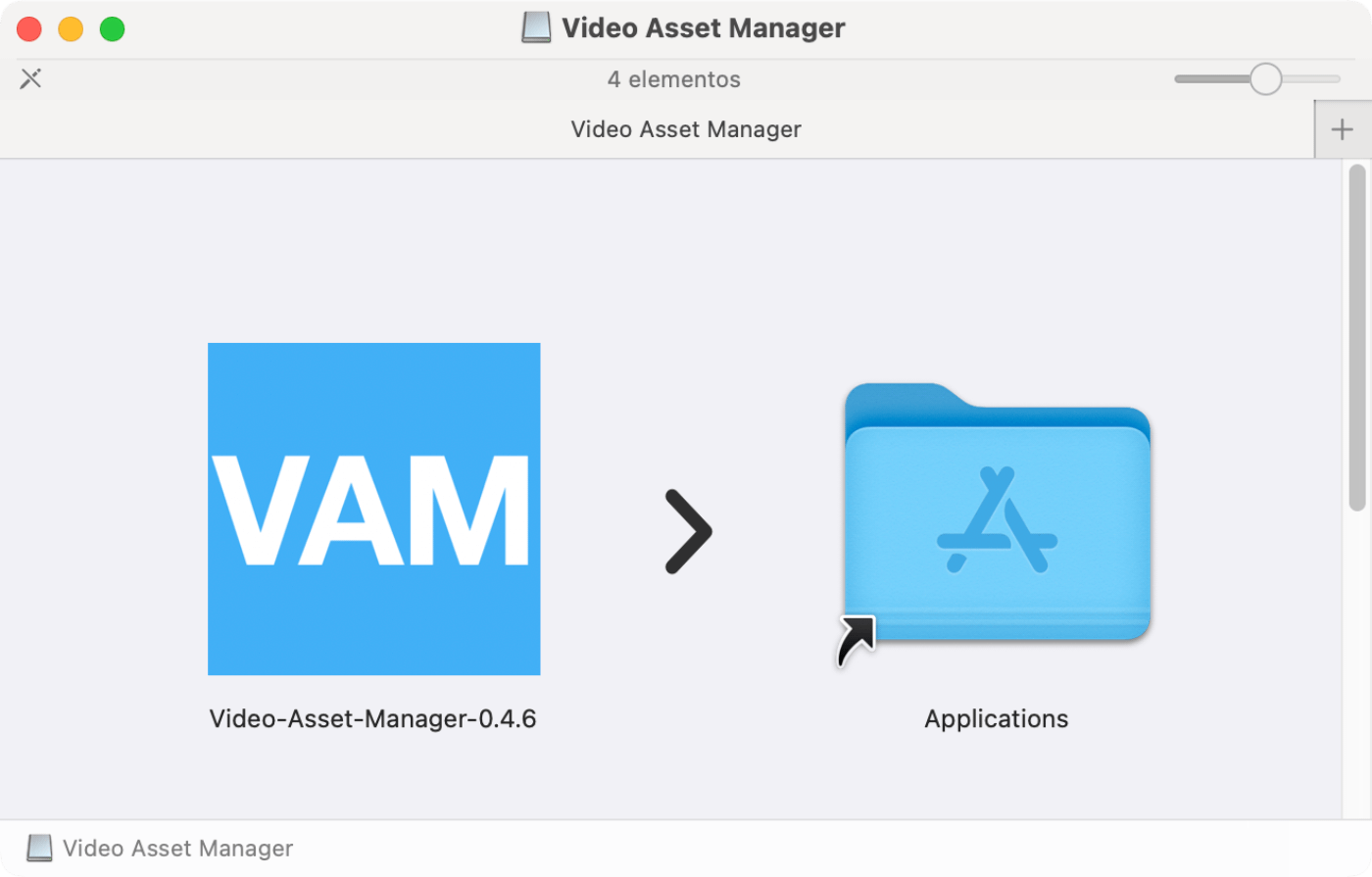
After you download the app from the link provided, all you need to do is open the DMG file, then drag the icon to the Applications folder.
Just double-click and start using Video Asset Manager.
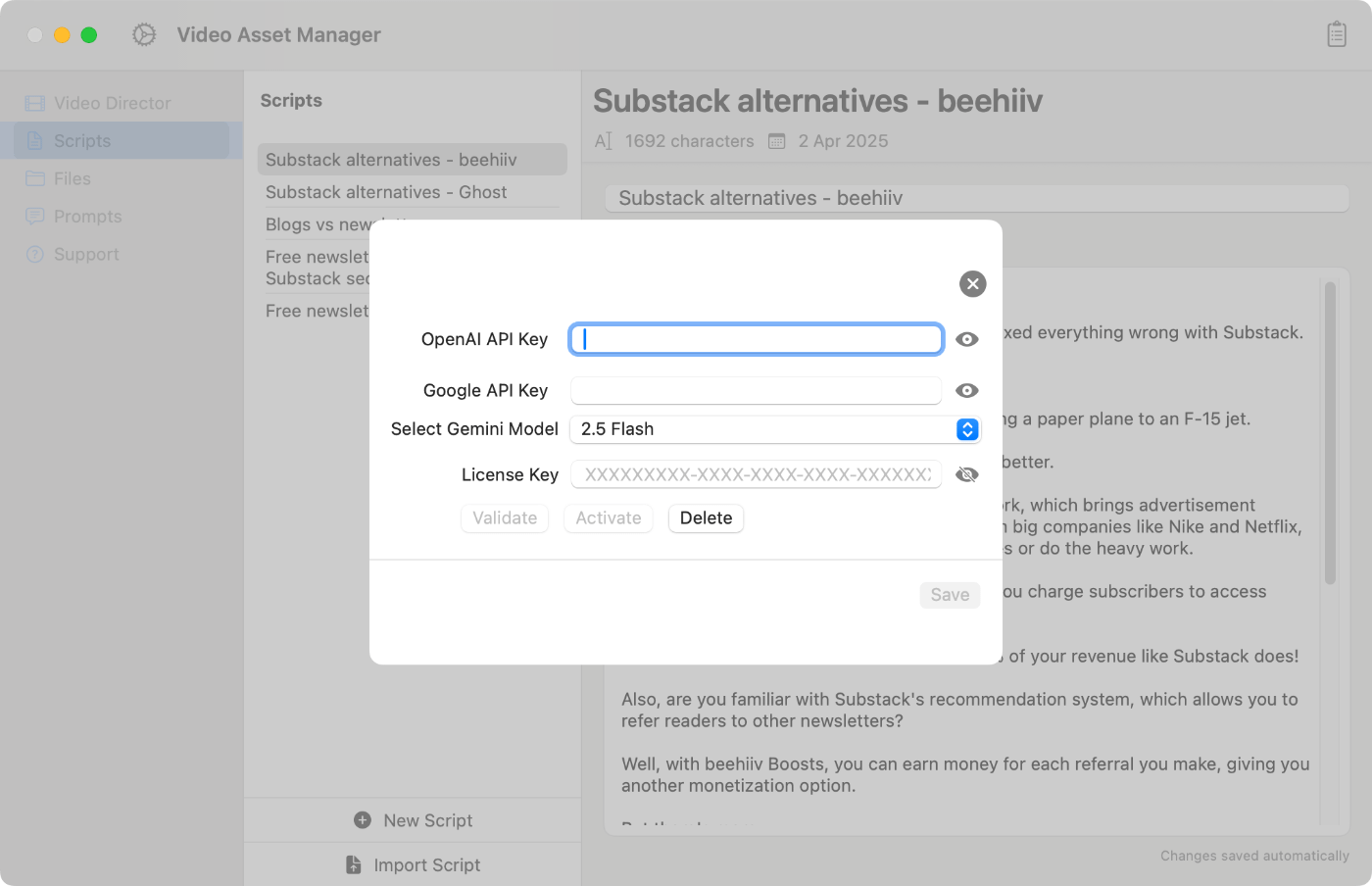
To finish the setup process, enter the license key and API keys for OpenAI and Gemini.
Click on any of the links above to see detailed screenshots, including how and where you can get the keys.
Your next step will be going to the Files tab and selecting the folder where your B-roll library is (the folder with the videos you want to analyze).
Then select a video and click ‘analyze’ to request Google Gemini to analyze your video. You can also queue videos and let the app analyze them sequentially in the background.
Then wait a bit for the app to upload the video, and for Google’s Gemini to send back a response.
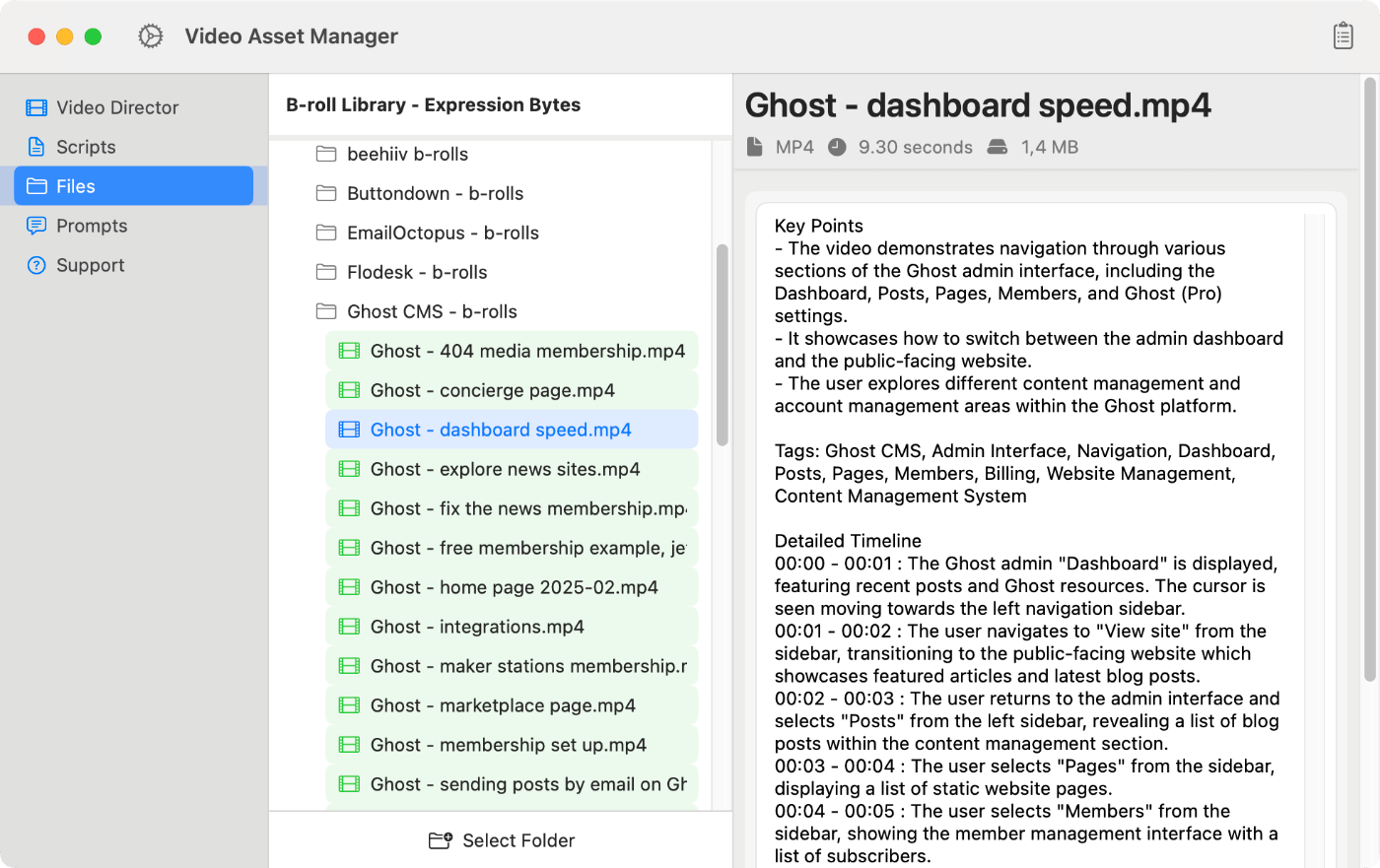
The video analysis is usually a one-time process, as you will analyze the videos now and use them later on for B-roll suggestions when you work on creating the storyboard inside Video Director. This is automatic b-roll logging in action. Analyze once, then search and find clips whenever you need them.
Side note about the video analysis files: Each analysis is saved in plain text format on your machine.
The analysis will contain the same info you see from inside the VAM app, like the timestamps of the events in the video. These timestamps are critical for the app’s functionality and are what will be suggested as B-roll clips, as you will see later.
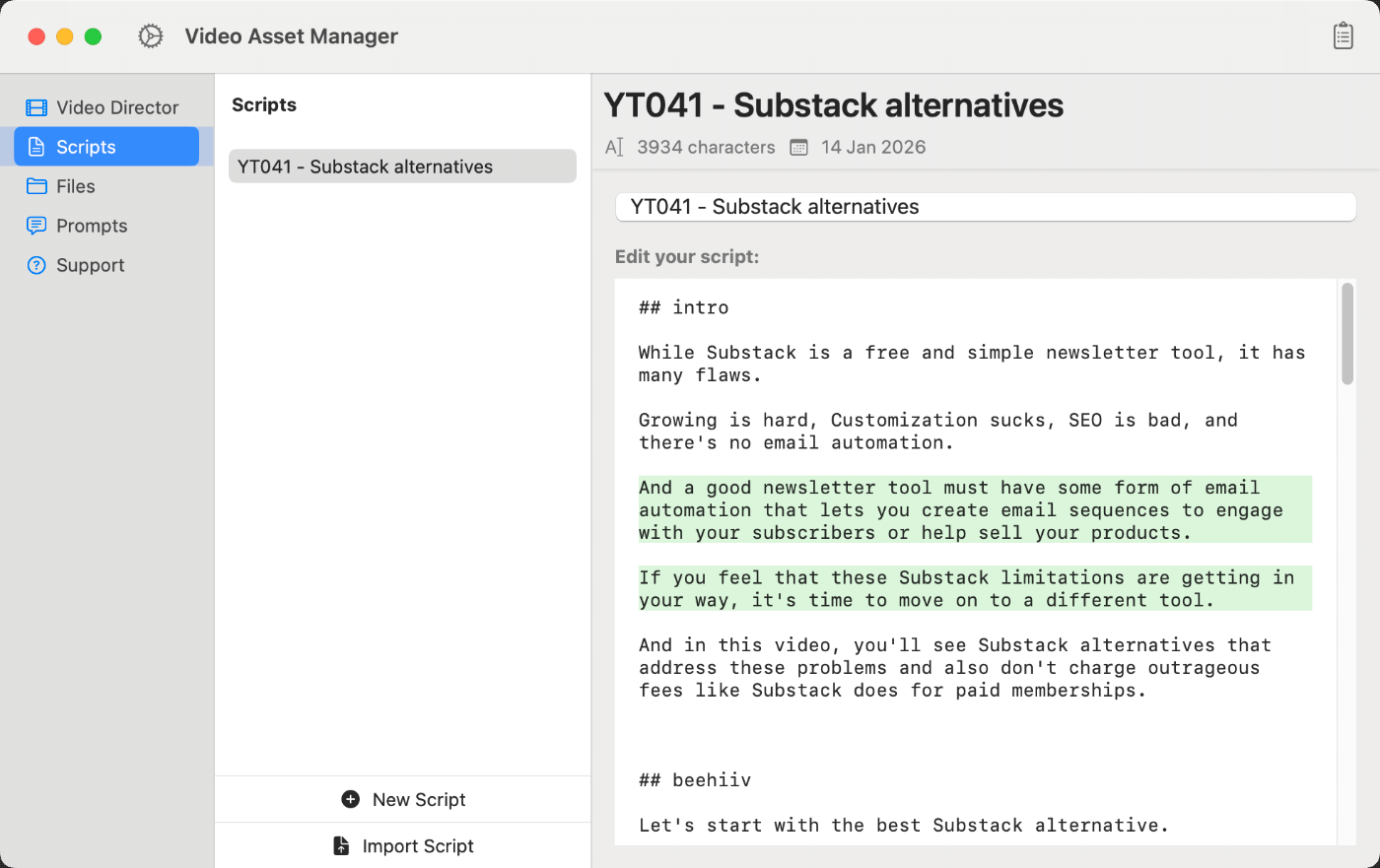
Now, let’s move on to the Scripts tab, where you will enter your video scripts.
This can be a transcript from your A-roll footage, or the original script you copied from your note-taking app like Google Docs, Obsidian, or Notion.
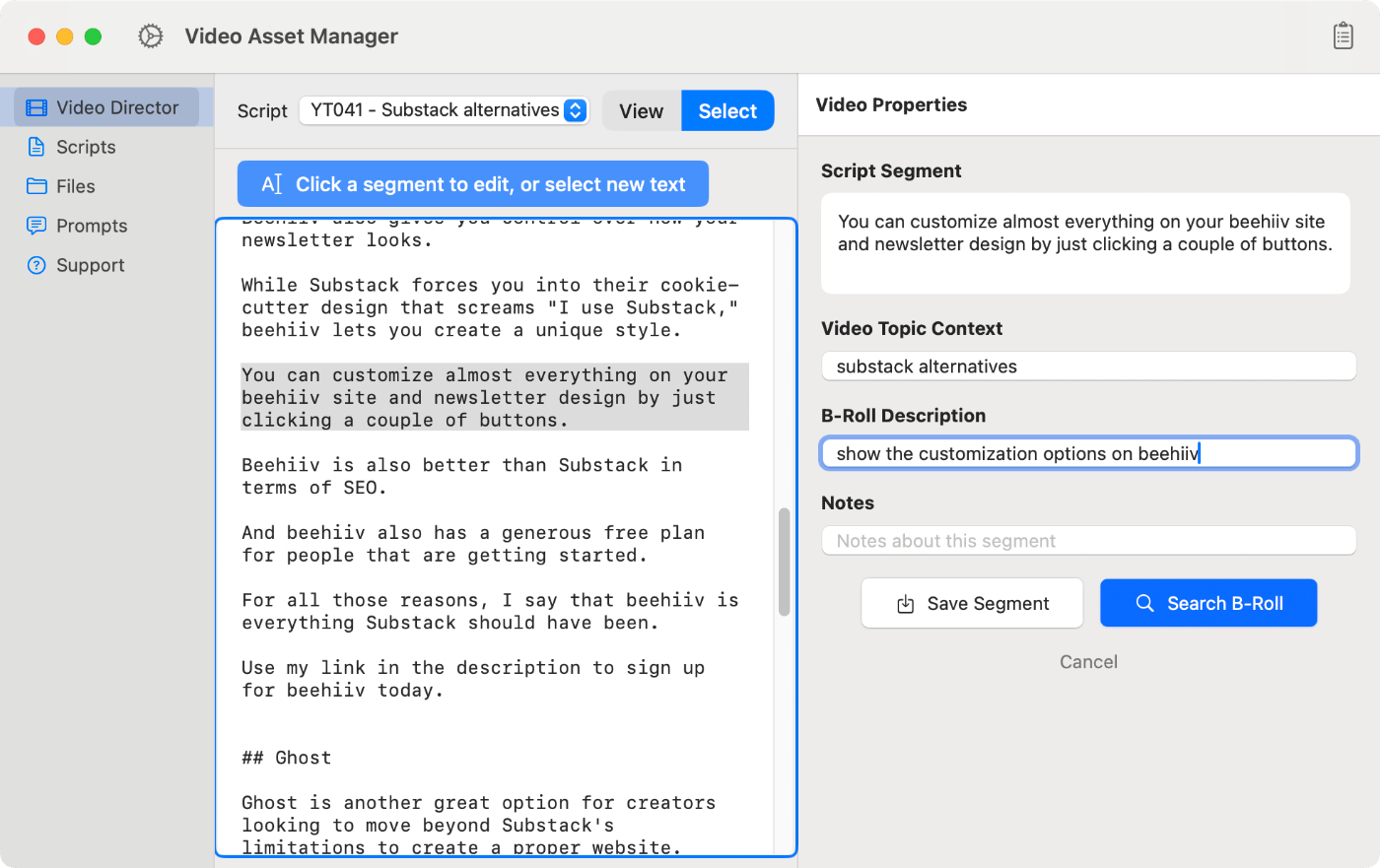
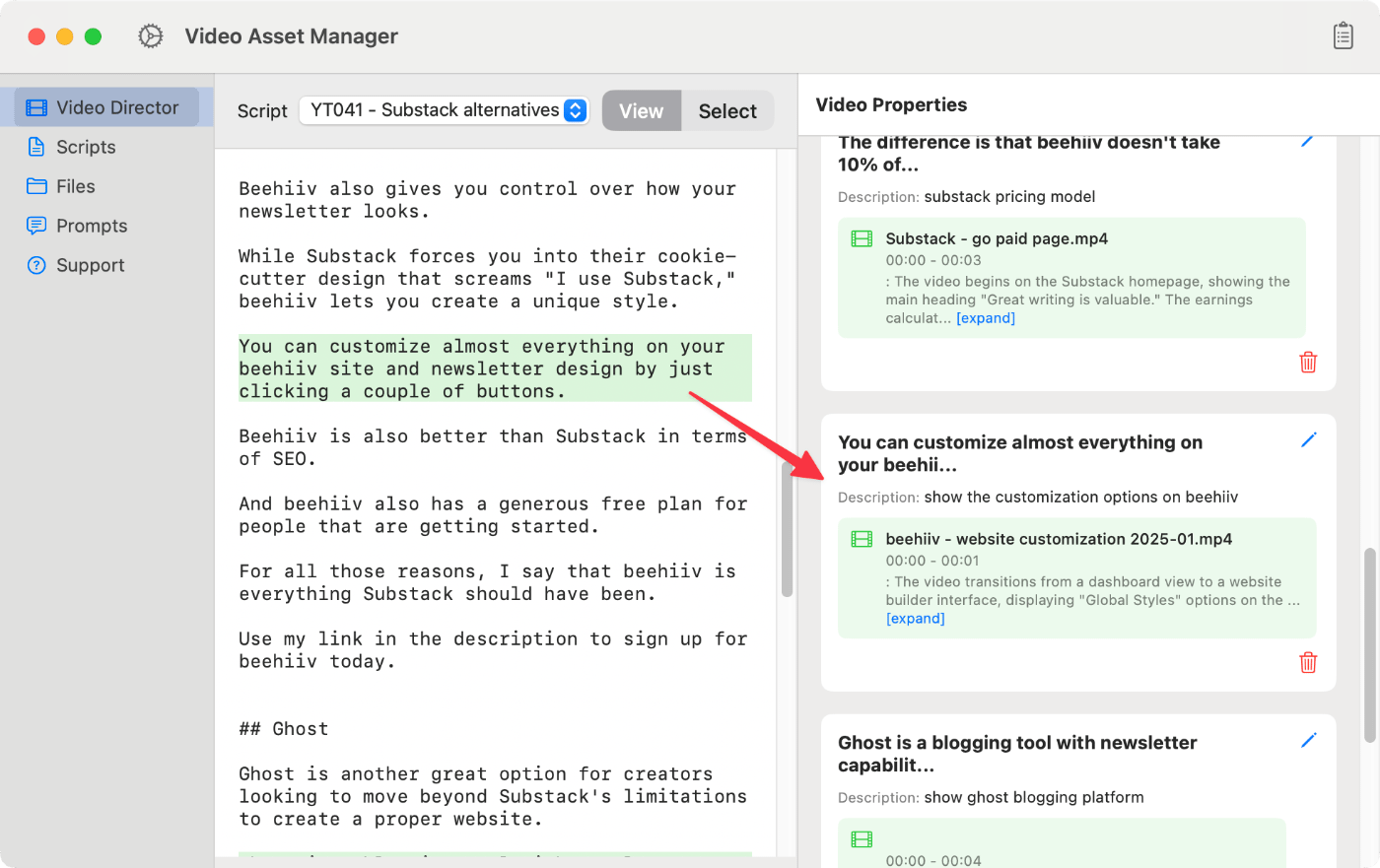
In the Video Director is where the magic happens.
It shows your video script on the left and the B-roll recommendations/search functionality on the right.
The search functionality works by selecting the script segments you want to put B-roll on and describing what you are looking for.
Then the LLMs will search in your video analysis files (the text files saved from the analysis step) and suggest the best options to use as B-roll.
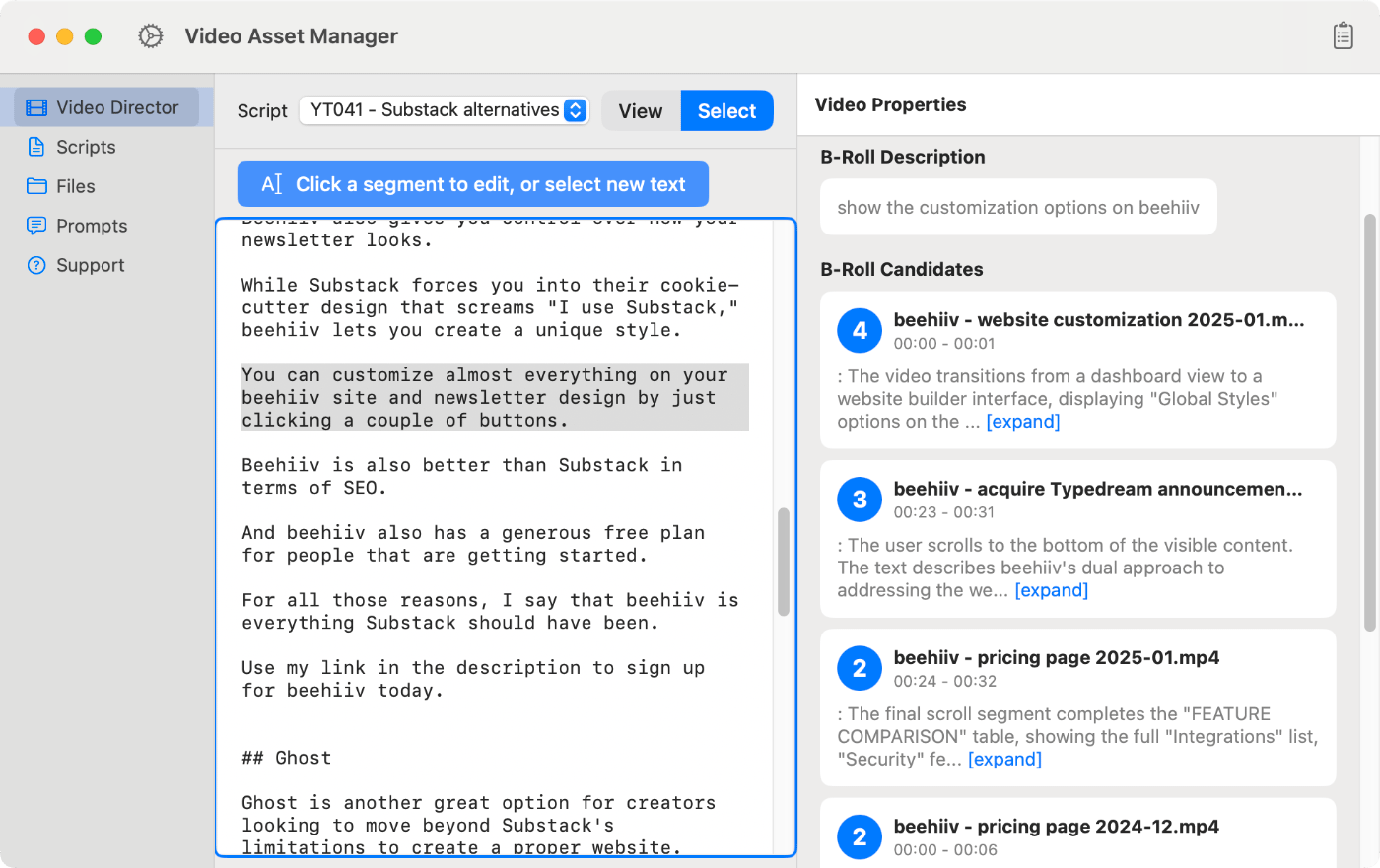
The app will show you the best B-roll options from your personal database, rated from one to five (where five is the best rating).
Each suggestion will show the text description of the scene and the time it happens in the video. This will make it faster to know if a suggestion fits what you’re looking for, instead of you having to scrub videos to find a few seconds of footage.
When you find a clip you are happy to use as B-roll, save the selection, and the app will associate it with the script segment. This builds your storyboard as you work through the script.
At this moment, the app is expected to have some bugs and limitations. Please share any bugs you find with me to help improve the app.
As for the limitations, I would say the major ones at the moment are:
If you need any help with the app or have suggestions to make, please contact me, and I’ll do my best to help you.