
The Video Asset Manager app requires a License key, an OpenAI API key, and a Google API key to function.
This document explains how to get your License key and activate it to use the app.
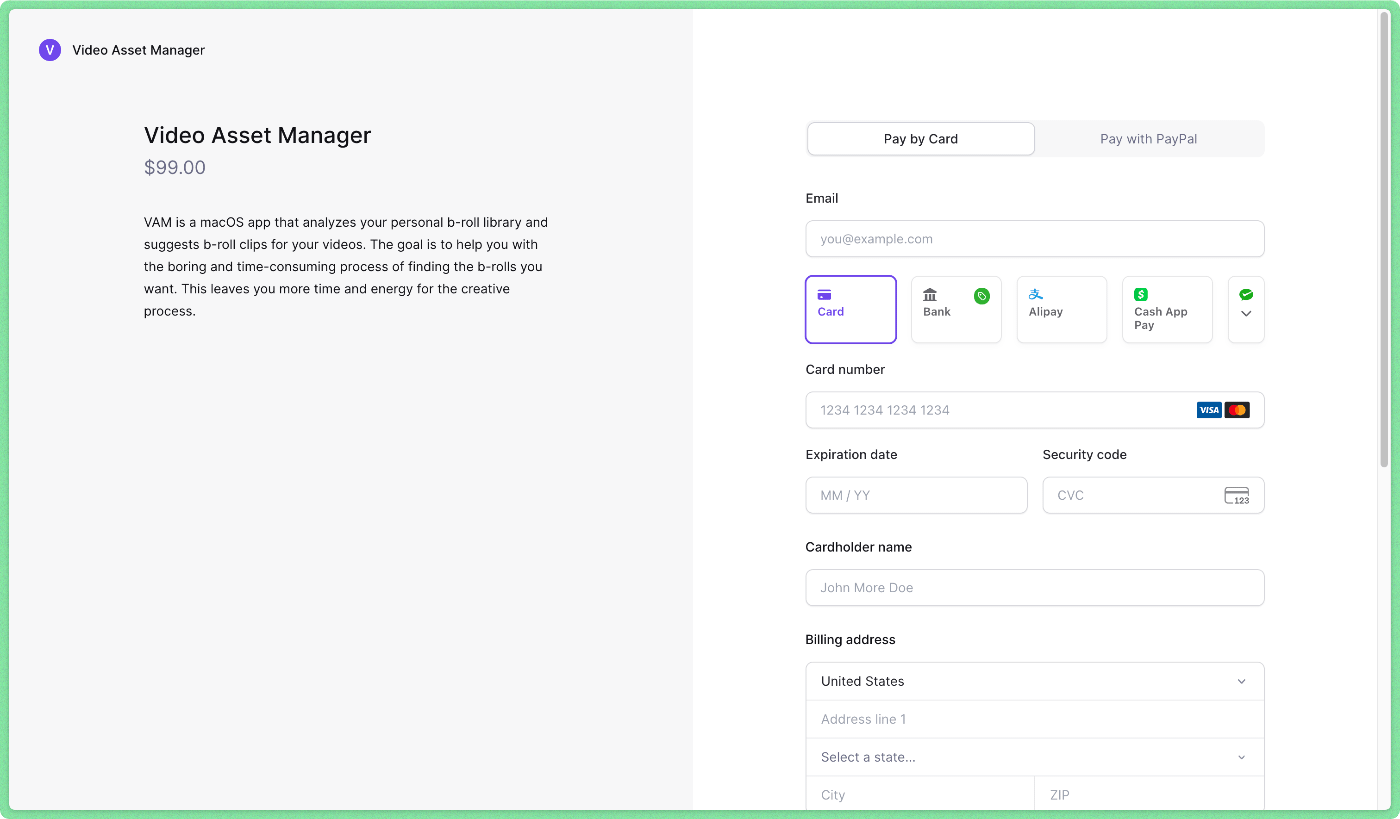
Step 1: Go to the store and complete a purchase of the Video Asset Manager app.
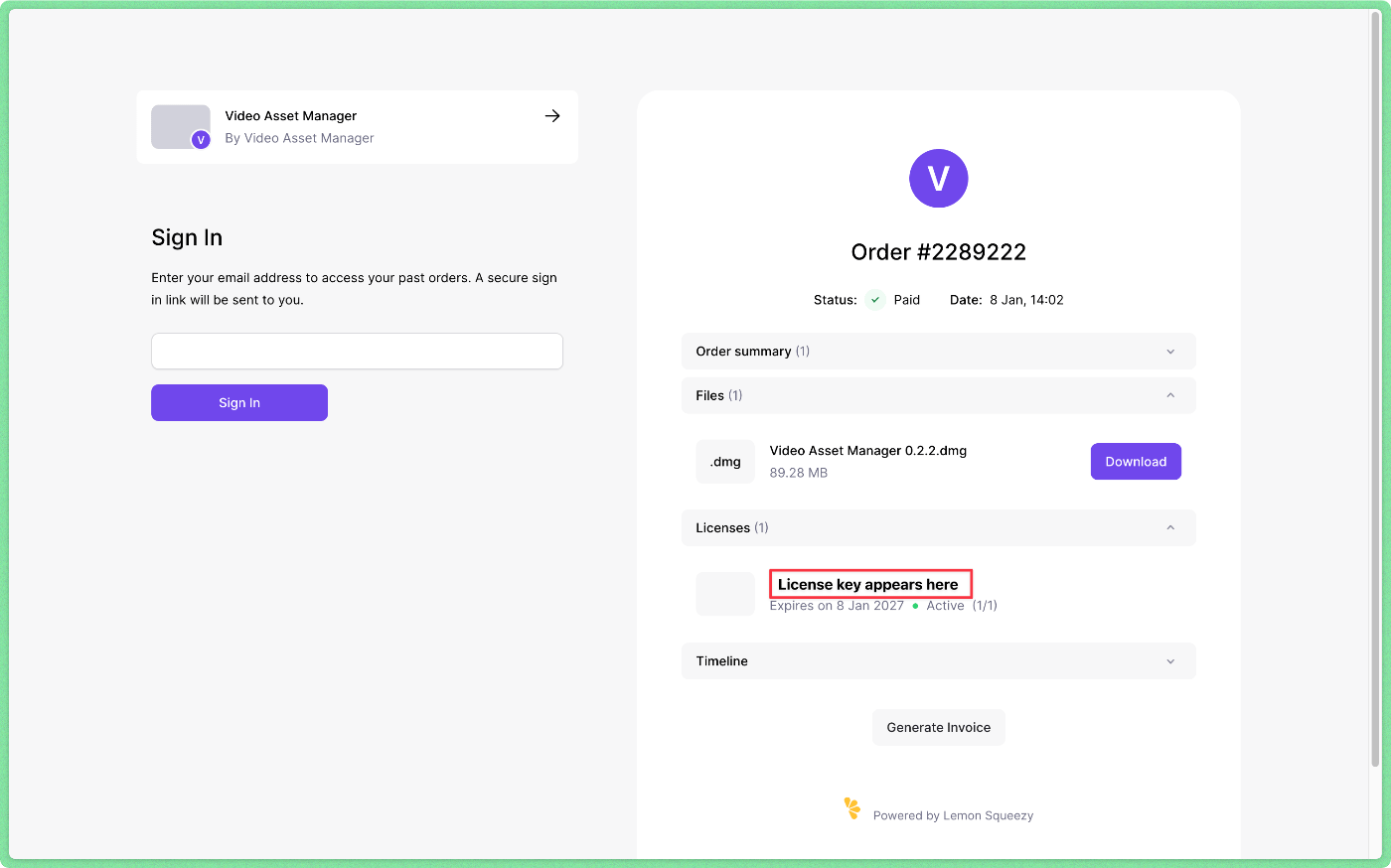
Step 2: Grab the license key from the purchase page or the email confirmation you received.
Now, you need to go to the Video Asset Manager app.
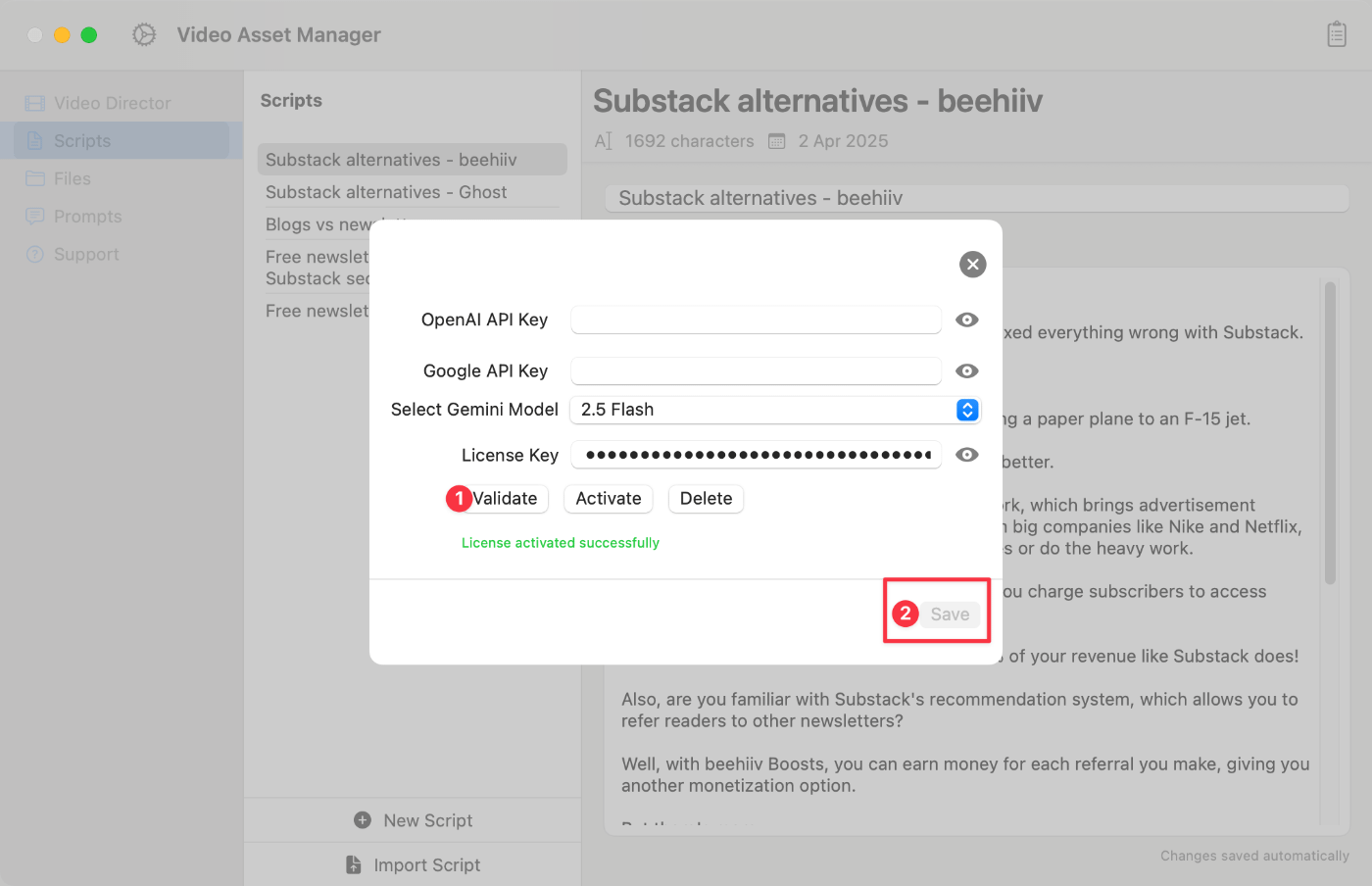
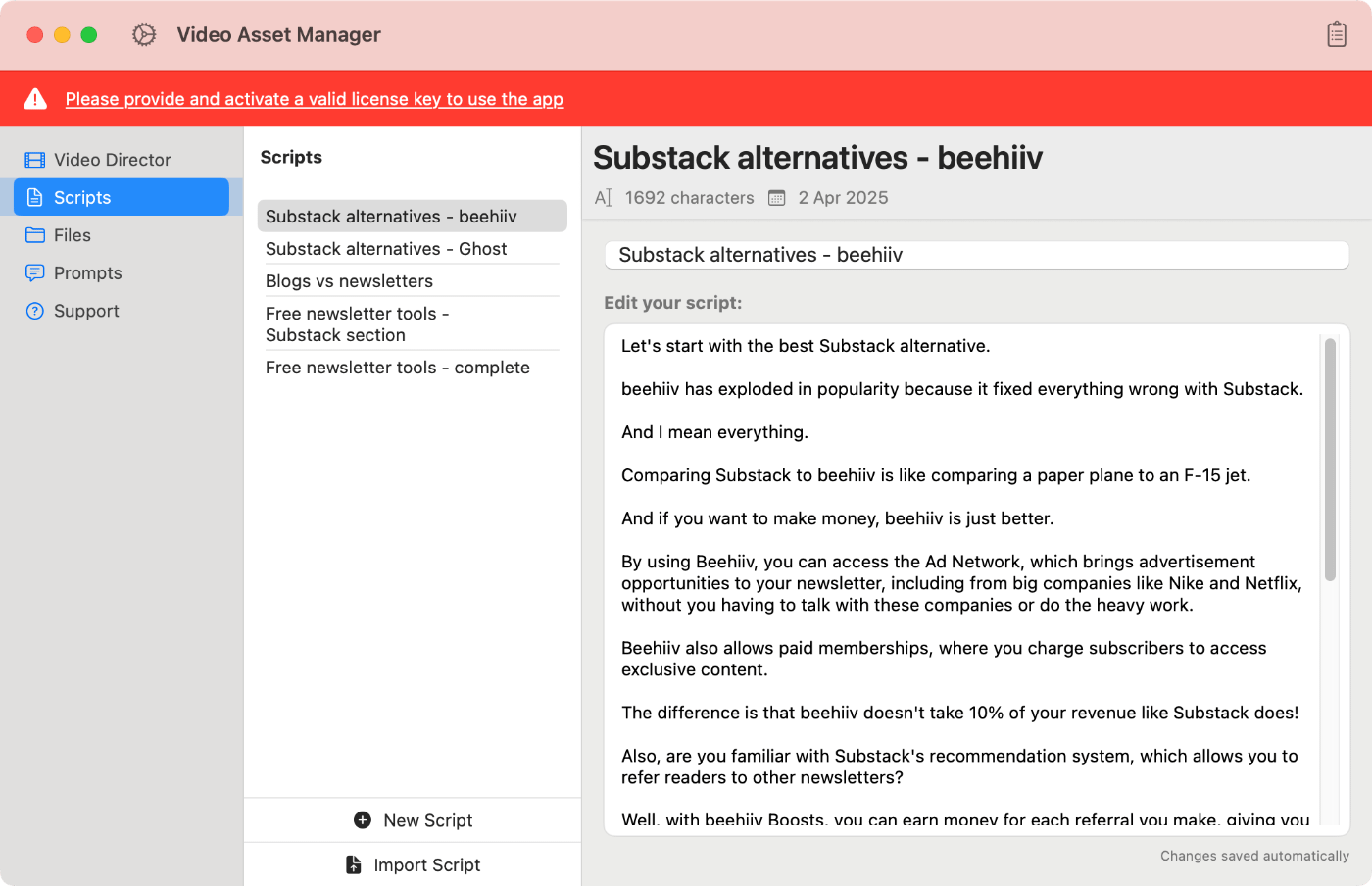
Step 3: Open the app, and click on the red banner’s text or go to settings (gear icon).
Step 4: Paste the license key in the License Key field and click ‘Activate’.
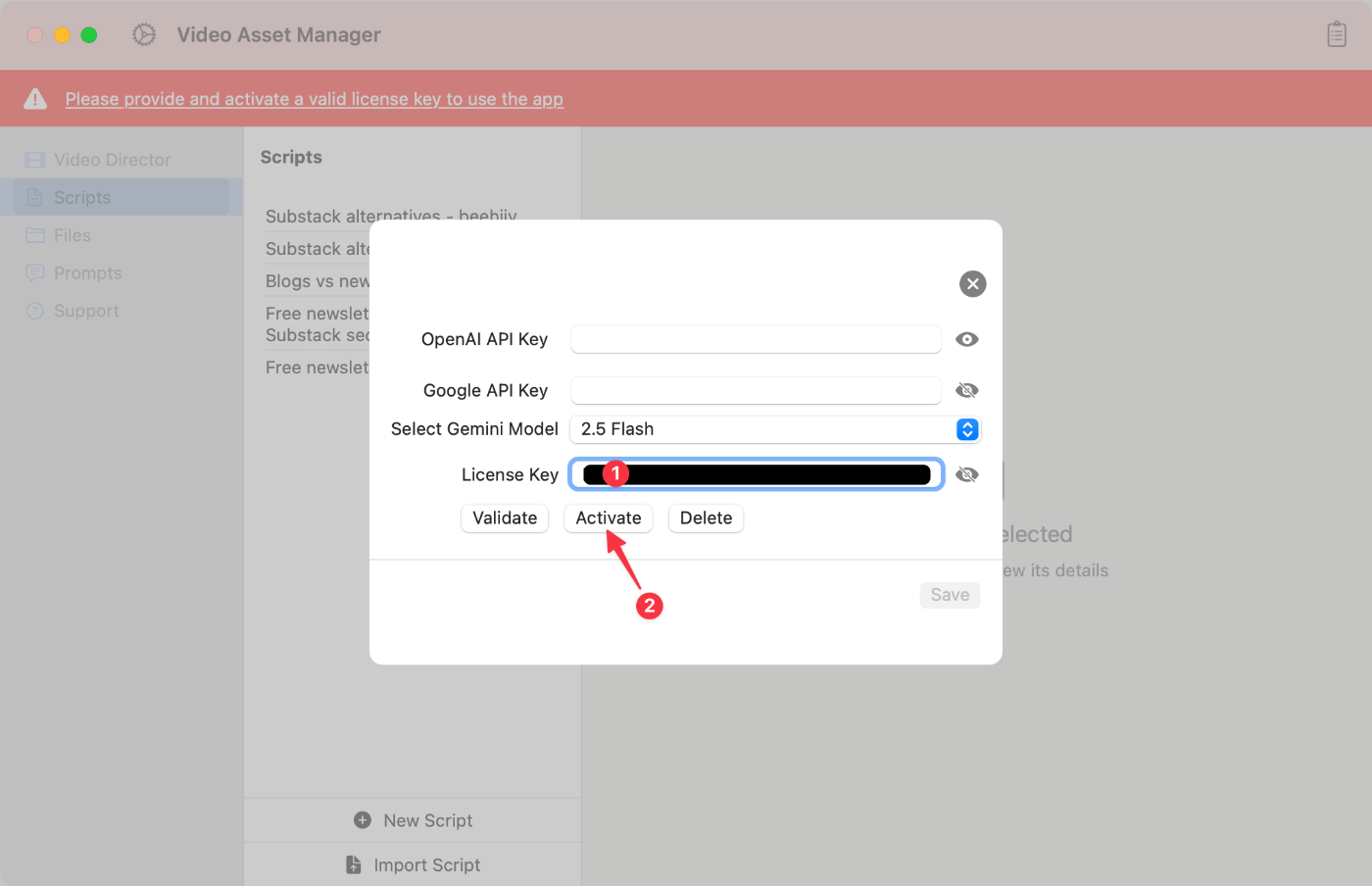
Step 5: Finish the process by clicking ‘Validate’. This is necessary for the app to validate the key with our authentication system.