In this guide, I'll show you how to get started with Video Asset Manager.
The goal is to help video editors and content creators analyze their personal b-roll libraries and create a shot list faster.
VAM operates with a bring-your-own-API-keys model, which makes things more transparent and helps keep costs lower.
After you download the app from the link provided, all you need to do is open the DMG file, then drag the icon to the Applications folder.
Just double-click and start using Video Asset Manager.
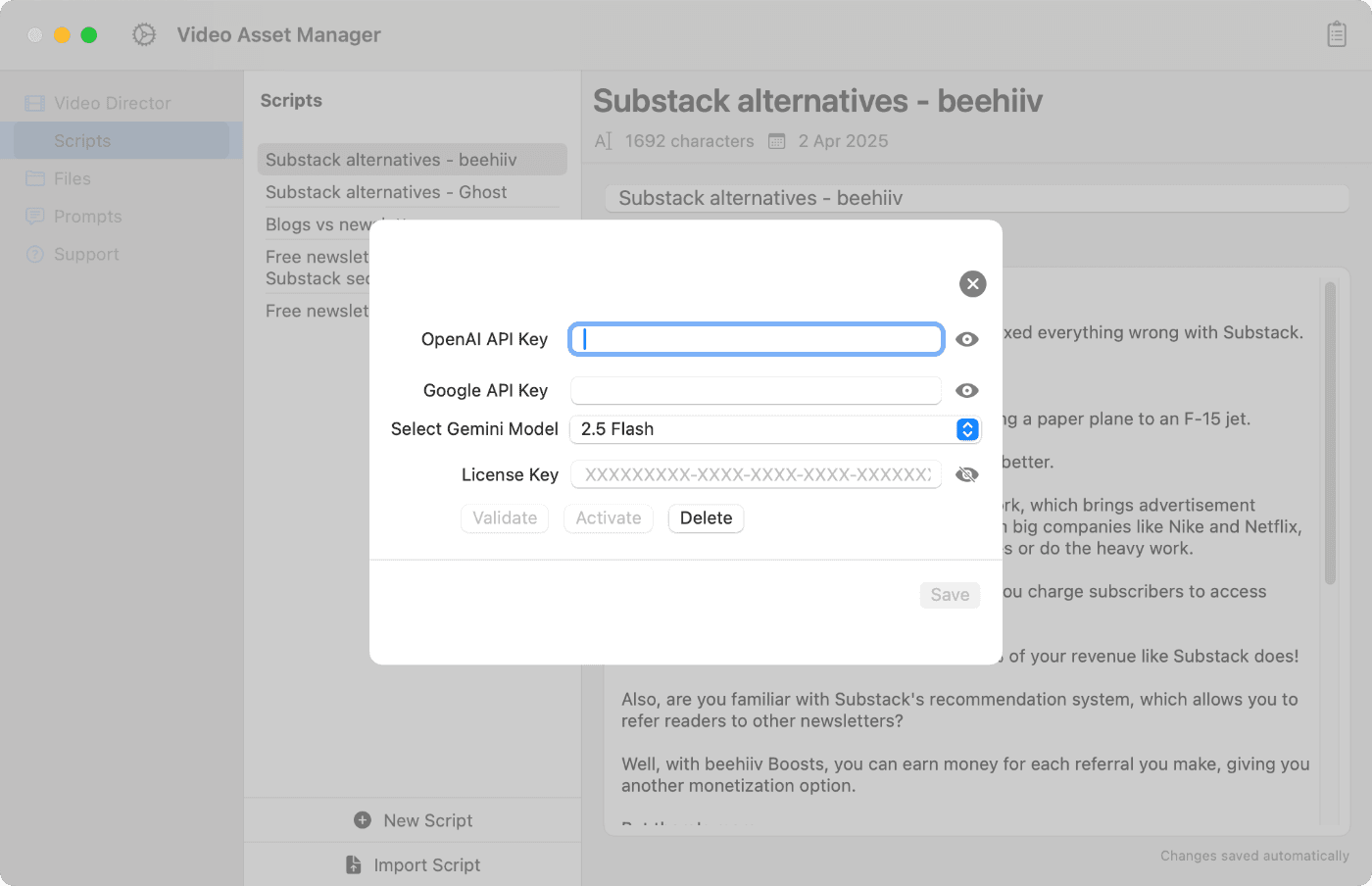
To finish the setup process, enter the license key and API keys for OpenAI and Gemini.
Click on any of the links above to see detailed screenshots, including how and where you can get the keys.
Next, you should add a Prompt to the app (the instructions Google Gemini will use to create the analysis of a video).
I recommend a prompt that includes the guiding principles for the analysis, as well as giving an example of the quality of a response you expect.
Please find below the prompt template I suggest.
Act as an expert video analyst and a meticulous technical writer. Your primary task is to analyze the provided video and create a detailed, scene-by-scene timeline. The output must be objective and based only on the visual information present in the video. The goal is a log so clear that a video editor can understand the entire sequence of events without watching the video.

### Guiding Principles for a Great Timeline
- **Define Scenes Logically:** A new timestamp should only be created when the user's primary goal or the main subject on screen fundamentally changes. Group related micro-actions (like a series of clicks and typing to complete one form) into a single, logical scene. By default, merge short, related events into a meaningful segment with at least 3-5 seconds to avoid low-quality scenes.
- **Be Accurate and Objective:** Describe only what is visually present on the screen. Do not guess the user's intent, infer emotions, or describe invisible background technical processes. If text is shown on screen, refer to its content or purpose accurately.
- **Focus on Purpose, Not Just Mechanics:** Describe the outcome or purpose of an action. For example, instead of "User clicks the 'File' menu and then clicks 'Save'," write "The user saves the document" as a better way to describe what happens.
- **Ensure Complete Coverage:** The timeline must be contiguous and cover the entire duration of the video, from `00:00` to the very end. The end time of your final timestamp must match the video's total length.


### Required Output Structure
Your response should include these sections:
- **Key Points:** A bulleted list of the 3-5 most important moments.
- **Tags:** A comma-separated list of keywords.
- **Detailed Timeline:** The scene-by-scene breakdown.

### Example of a High-Quality Response
Key Points
- The video demonstrates how to interact with the "Interest over time" graph on the Google Trends platform.
- It analyzes the historical search interest for the term "Newsletter" from 2009 to 2023.
- The user interface reveals specific interest scores and data annotations when the user hovers over the graph.

Tags: Google Trends, Data Analysis, Search Trends, Keyword Research, Newsletter

Detailed Timeline
00:00 - 00:14 : The Google Trends interface is displayed, showing the results for "Newsletter". The user moves the cursor along the "Interest over time" graph, revealing pop-up boxes with specific interest scores for dates between 2009 and 2016.
00:14 - 00:26 : The user continues to trace the graph from late 2016 to late 2021, revealing more interest scores and a data collection system annotation.
00:26 - 00:31 : The user examines the final segment of the graph, covering 2022 and 2023, and views the corresponding interest scores.
Your next step will be going to the Files tab and selecting the folder where your B-roll library is (the folder with the videos you want to analyze).
Then select a video and click 'analyze' to request Google Gemini to analyze your video. You can also queue videos and let the app analyze them sequentially in the background.
Then wait a bit for the app to upload the video, and for Google's Gemini to send back a response.
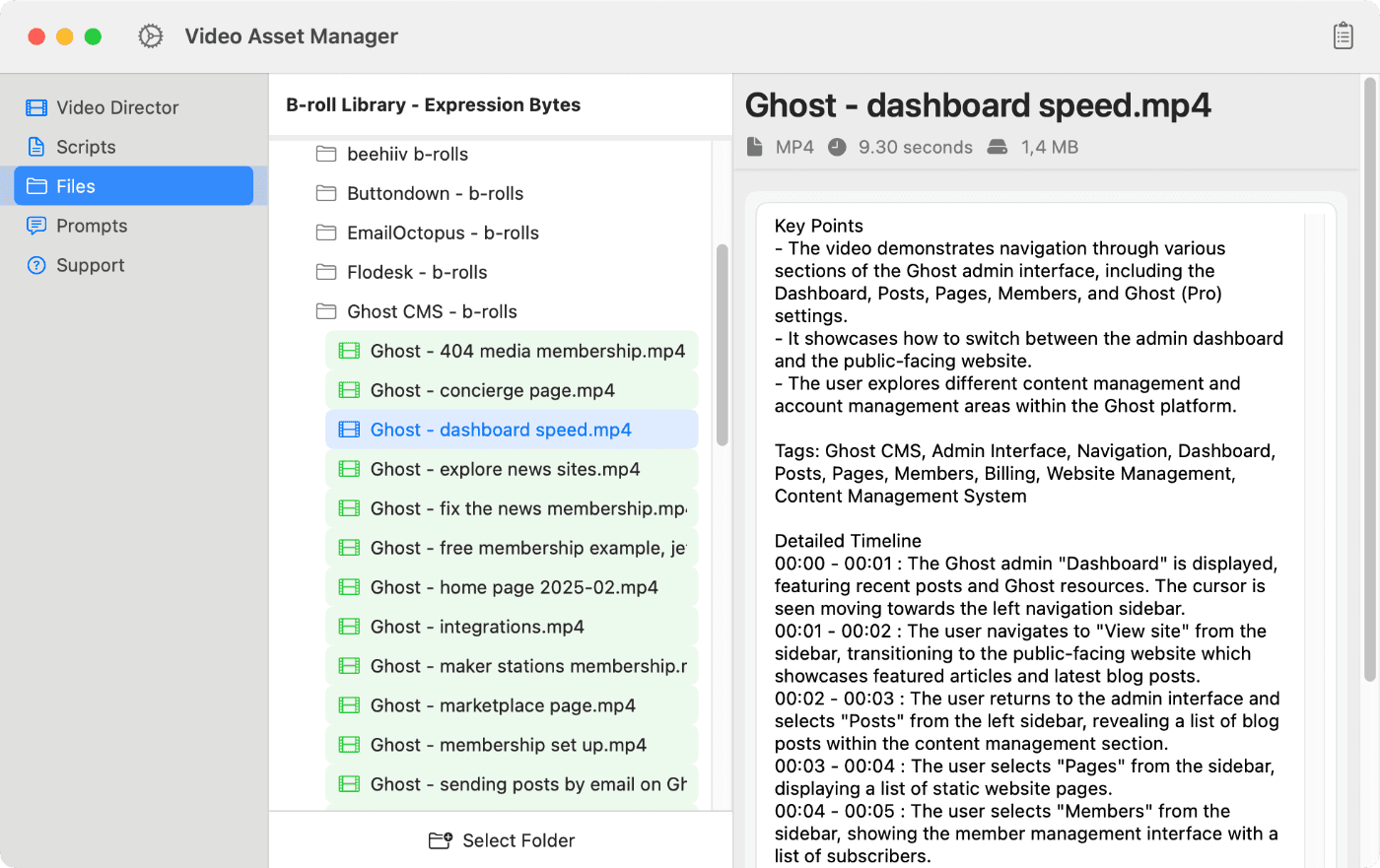
Side note about the video analysis files: Each analysis is saved in plain text format on your machine.
The analysis will contain the same info you see from inside the VAM app, like the timestamps of the events in the video. These timestamps are critical for the app's functionality and are what will be suggested as B-roll clips, as you will see later.
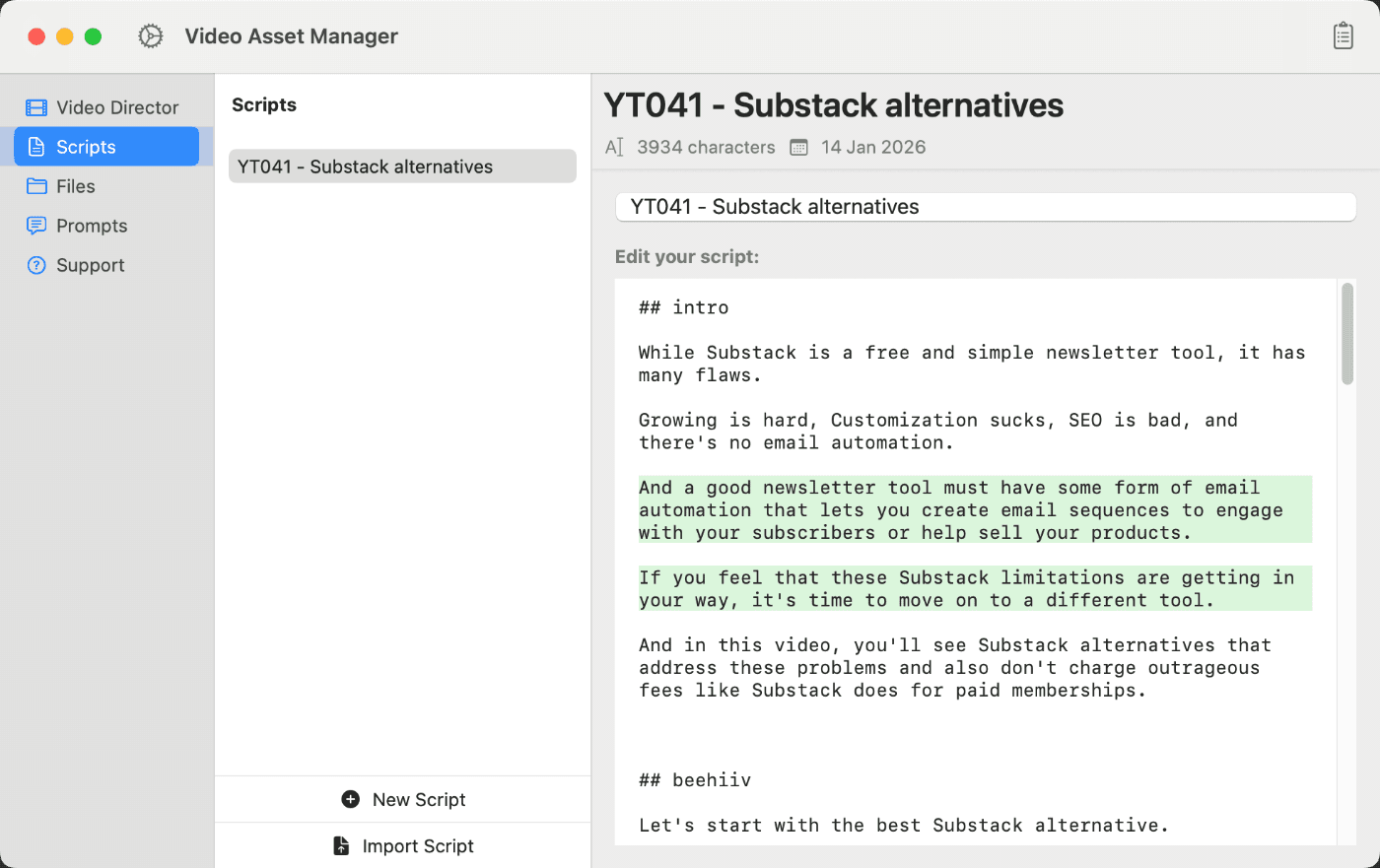
Now, let's move on to the Scripts tab, where you will enter your video scripts.
This can be a transcript from your A-roll footage, or the original script you copied from your note-taking app like Google Docs, Obsidian, or Notion.
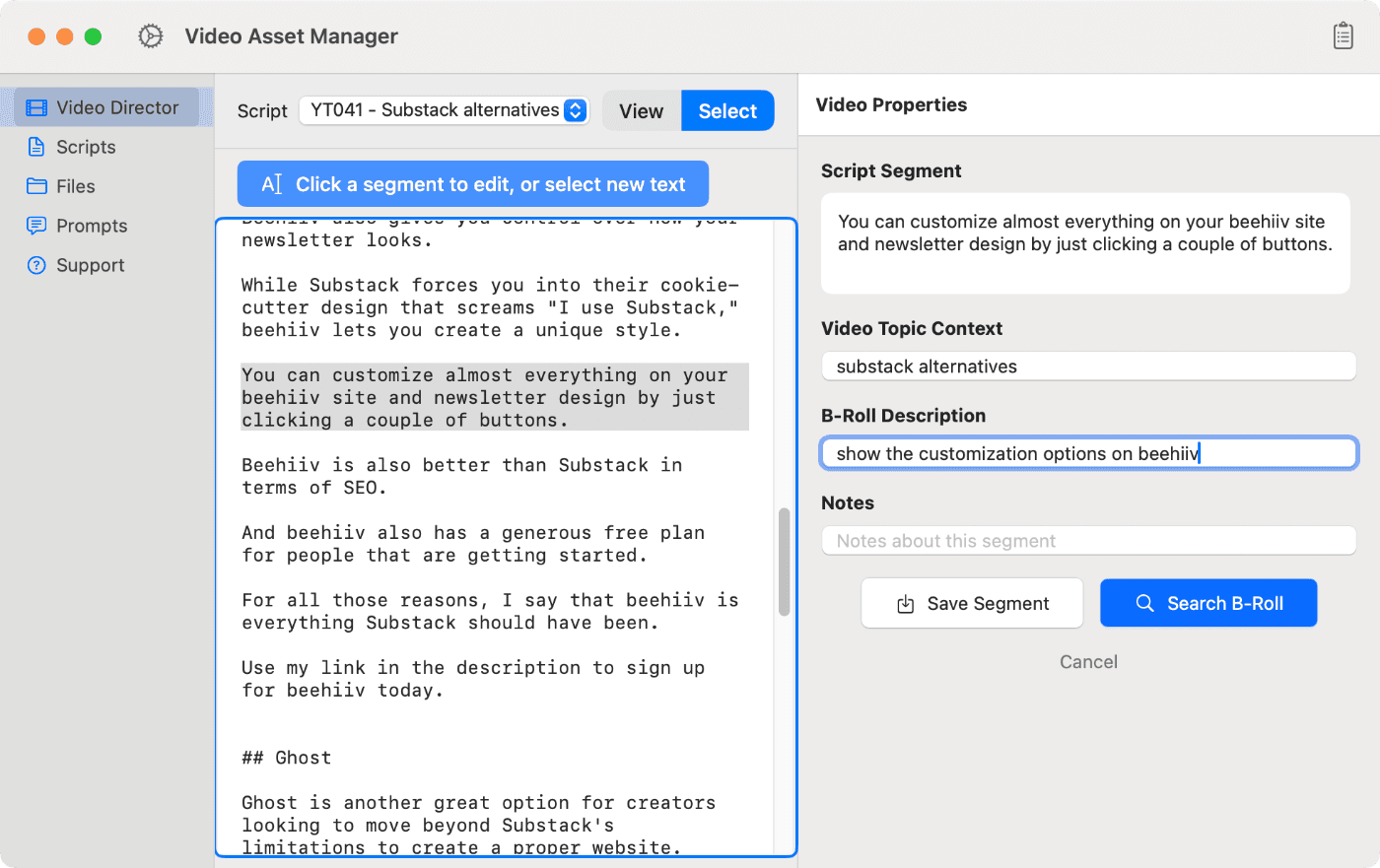
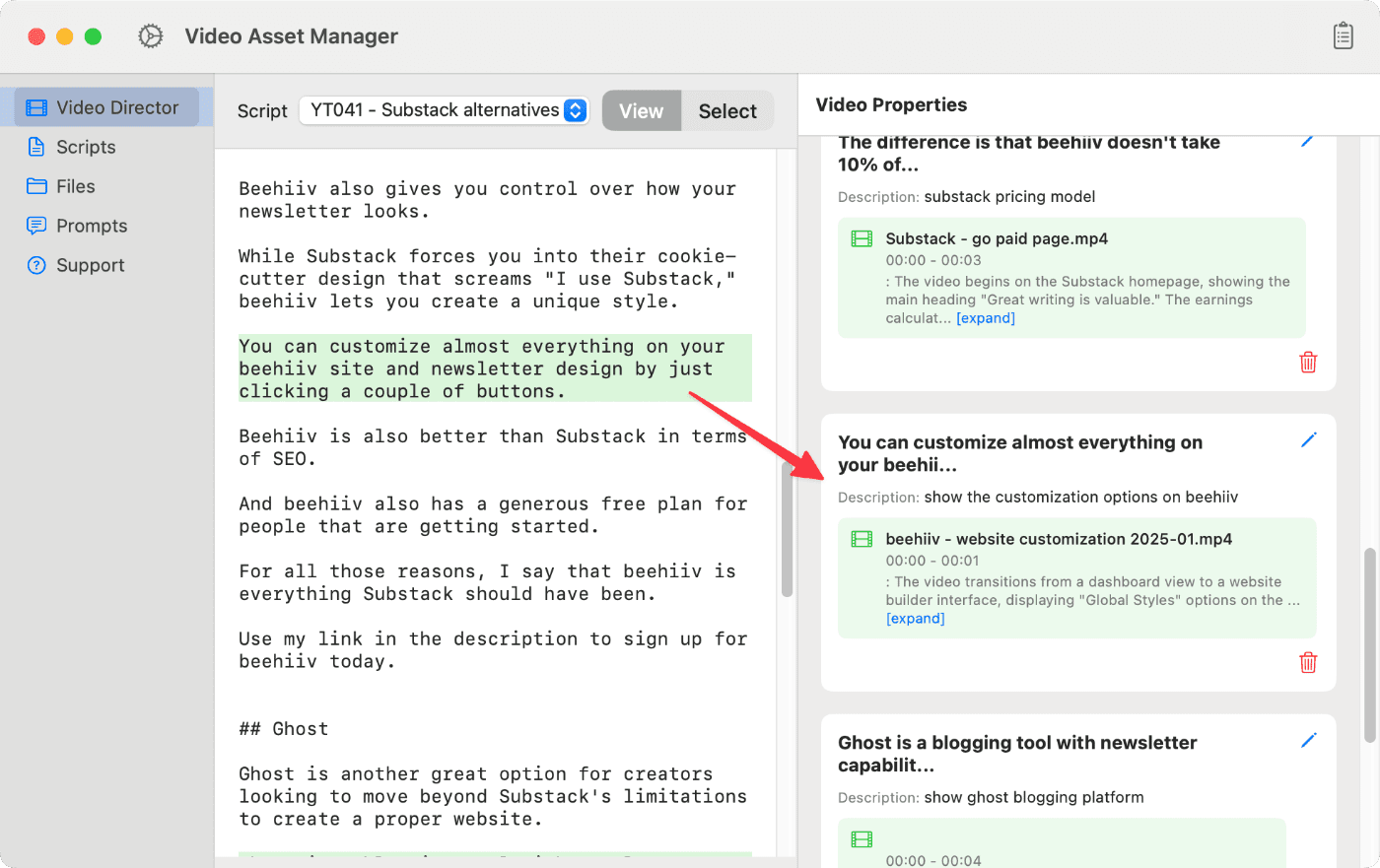
In the Video Director is where the magic happens.
It shows your video script on the left and the B-roll recommendations/search functionality on the right.
The search functionality works by selecting the script segments you want to put B-roll on and describing what you are looking for.
Then the LLMs will search in your video analysis files (the text files saved from the analysis step) and suggest the best options to use as B-roll.
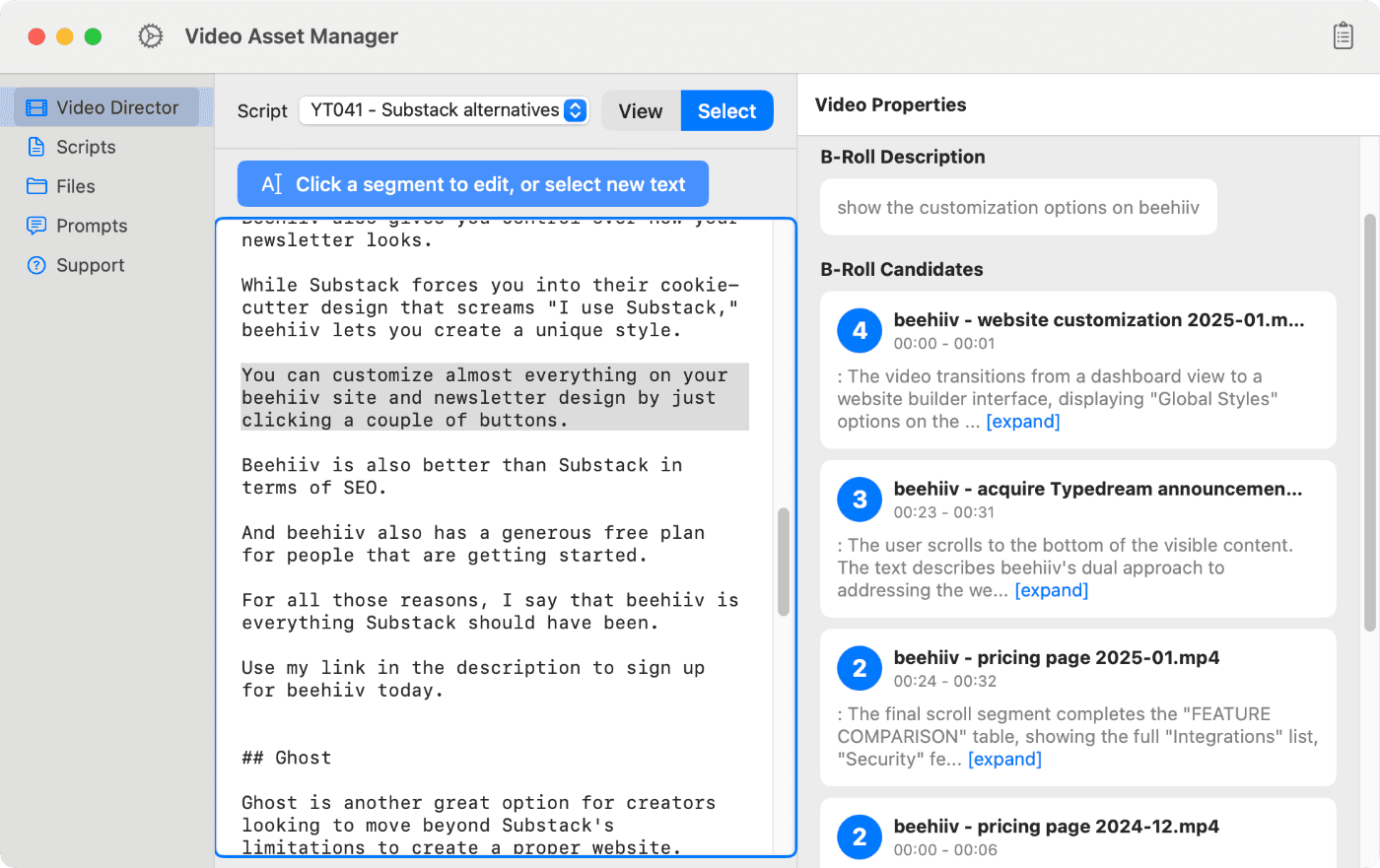
The app will show you the best B-roll options from your personal database, rated from one to five (where five is the best rating).
Each suggestion will show the text description of the scene and the time it happens in the video. This will make it faster to know if a suggestion fits what you're looking for, instead of you having to scrub videos to find a few seconds of footage.
When you find a clip you are happy to use as B-roll, save the selection, and the app will associate it with the script segment. This builds your storyboard as you work through the script.
At this moment, the app is expected to have some bugs and limitations. Please share any bugs you find with me to help improve the app.
As for the limitations, I would say the major ones at the moment are:
If you need any help with the app or have suggestions to make, please contact me, and I'll do my best to help you.