
Organizing video footage for editing starts simple. A few folders, a naming convention, and one hard drive. But around the 50th video, your system starts to struggle.
You know the feeling when you have the clip and can’t find it. Either the video is buried in a project timeline, or you can’t find it in the mess that your b-roll library has become.
A video editing folder structure works best with numbered prefixes. Without them, your OS sorts alphabetically, and “Audio” ends up above “Footage” for no useful reason. Numbered folders stay in the order you actually work in.
A typical project folder looks something like this:
Project_Name/
  01_Footage/
  02_Audio/
  03_Graphics/
  04_Project-Files/
  05_Exports/
The subfolders inside 01_Footage/ depend on your preference. Some editors split by camera source, others by content type. The numbering is what matters: it keeps your folders in a predictable order across Finder, Windows Explorer, and your NLE’s media browser.
However, the B-roll and stock footage you reuse across videos shouldn’t sit inside a single project folder because when you finish that project, the footage is effectively buried.
That’s why it’s worth considering other b-roll organization methods.
By project is the default approach for most editors. B-roll stays inside each project’s footage folder. This is easy to set up, but the clips for one video become invisible to every future video.
By customer or client makes sense for freelancers who have recurring content for the same clients. A shared b-roll folder per client keeps that footage accessible across multiple projects without duplicating files.
A global library sits alongside all your project folders and holds anything you’d want to reuse: screen recordings, drone aerials, desk overhead shots, stock clips from Pexels, etc. This system works for editors with a growing footage collection.
The right choice depends on whether you reuse footage across projects. If you do, keeping b-roll trapped inside project folders is a bottleneck.
When it comes to filenames, put the date first: YYYY-MM-DD_Topic. This sorts chronologically in every file browser without effort.
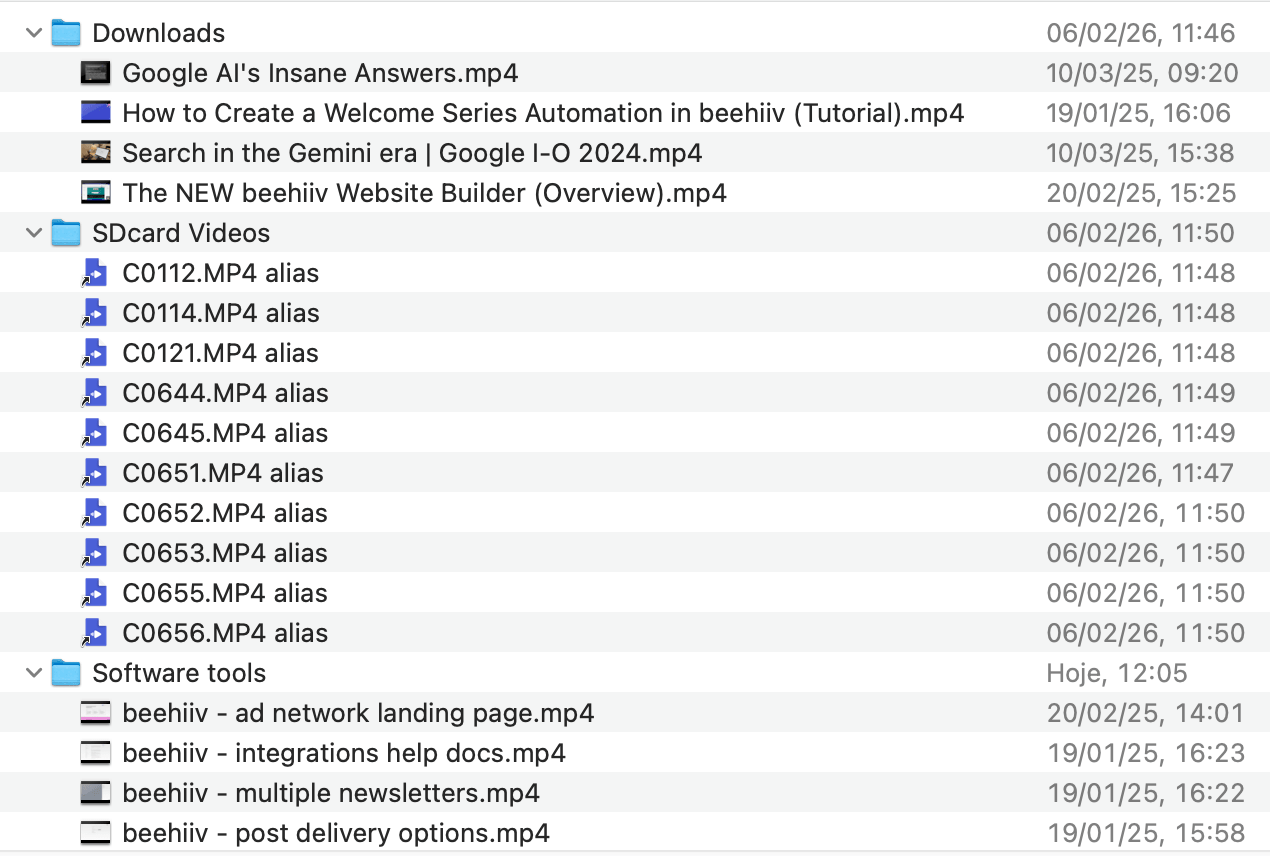
Avoid camera-generated names like IMG_4523.mp4 or C0012.MP4; they tell you nothing a week later. Date and topic is enough for most creators, if you shot multiple clips in one session, append _01, _02, _03.
And one rule worth following from day one: don’t move files after you’ve started editing. Your NLE (Premiere, Resolve, Final Cut) links to files by their location on disk, and moving a clip breaks that link. Reorganize before you open the project file, or use your NLE’s relink tool after (annoying, but it works).
Organizing video files with folders and naming conventions holds up for the first 1-2 years of regular publishing. After that, the system starts to choke.
The thresholds are roughly: 50+ hours of raw footage across your drives, 100+ individual files spread across multiple projects, or the moment you start a new video and feel the “I know I have something like this before, but can’t find it”.
Files with useless names pile up fast. Camera clips that stay as MVI_4523, screen recordings as Screen Recording 2026-03-15, and stock footage keep whatever name Pexels gave it. Yet, renaming every file is not the solution.
This leads you to start duplicating files because finding the original takes longer than re-downloading. B-roll from old projects sits trapped inside folders you haven’t opened in months, and eventually, you’re spending more time organizing than editing.
The core issue is that folders organize files by location, but when you’re editing, you think in terms of content. “I need that Notion walkthrough”, or “the drone shot from the camping trip”, or “a screenshot of the pricing page.” Folders can’t answer those questions, and neither can filenames.
Even the metadata you add (markers in Premiere, keywords in Final Cut, Smart Bins in Resolve) is trapped inside that NLE’s project file and doesn’t travel with the footage.
Your video file management system works great for putting things away. It just doesn’t help you get them back when you can’t remember where “away” is (which, after a few hundred files, is most of the time).
This is where automatic b-roll logging and content-based search can save you hours.
Automatic b-roll logging tools analyze your footage, scene by scene, and make its contents searchable.
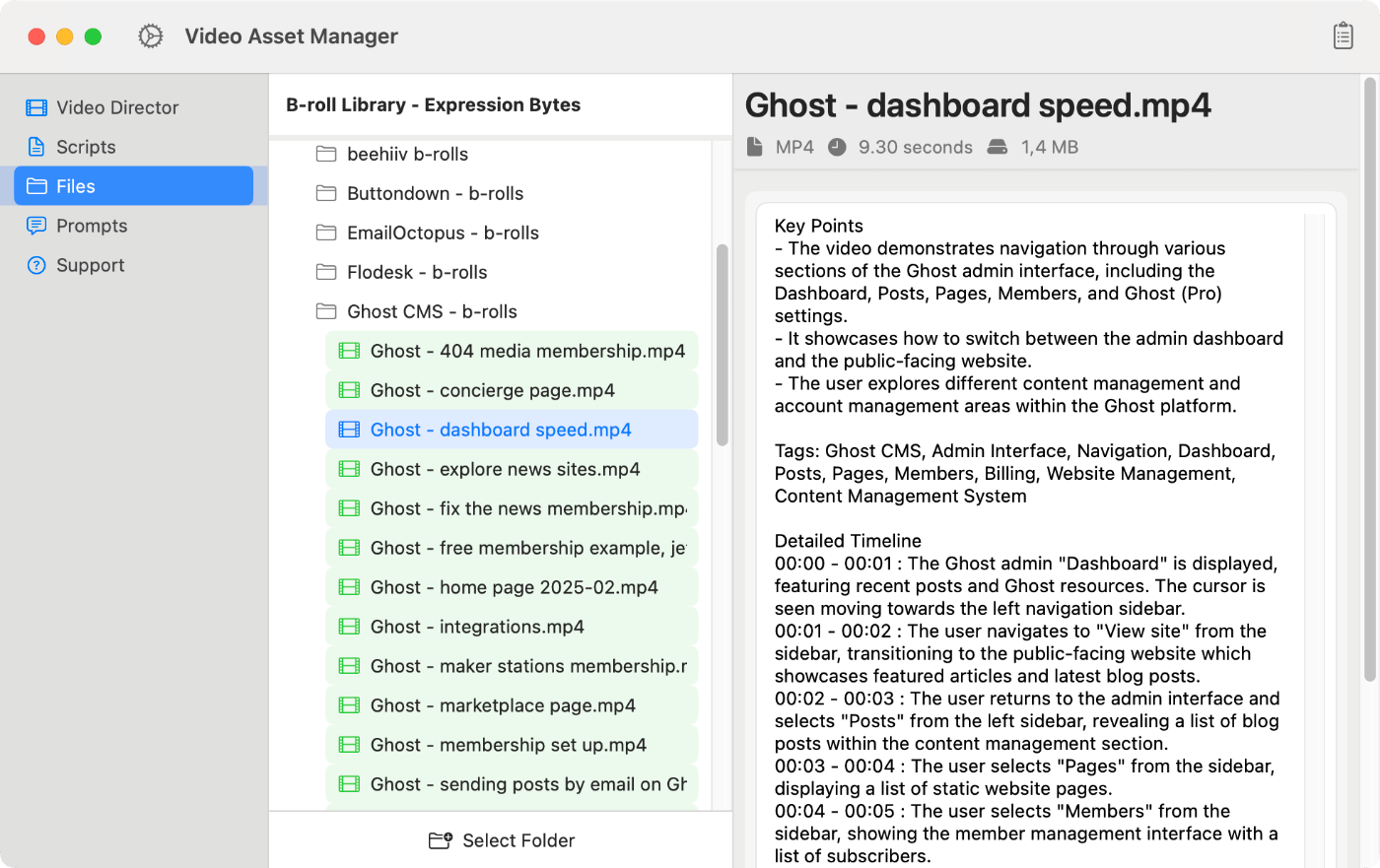
Video Asset Manager generates timestamped descriptions for each scene in your b-roll videos. The app can creates a detailed description for a video about cutting footage on Davinci Resolve like this: “00:07 - 00:23 : Using the blade tool, the editor makes several precise cuts across the video and audio tracks to isolate and remove a redundant section of the walkthrough.”
When you need a specific shot, you search by describing it. VAM pulls from your analyzed library, so that screen recording you made 14 months ago is still findable (sitting in a local database on your Mac, not locked inside an old project file).
And the best part is that each video only needs to be analyzed once. As for pricing, the app is a one-time payment and works as Bring-Your-Own-Key model. This means you only pay for what you use.
Focus works similarly to VAM and runs on both Mac and Windows (also a one-time purchase). For editors who’d rather tag manually, Clipthesis plugs into DaVinci Resolve for free batch tagging (Mac-only), while Kyno lets you browse and rate media across platforms without opening a full NLE.
Note: Read this article about other cool AI Video Editing tools.
Use numbered prefixes to control sort order: 01_Footage, 02_Audio, 03_Graphics, 04_Project-Files, 05_Exports. Inside 01_Footage, split by camera source or content type. For b-roll you reuse across projects, keep a separate library folder alongside your project folders so that footage stays accessible after individual projects are done.
When you start losing clips you know you have. If you’re past 50 hours of footage or 500+ files across multiple projects and you’re spending more time searching than editing, folders and naming alone aren’t enough. That’s when automatic logging tools like Video Asset Manager pay off: they make every clip searchable by what’s in it, not just where you put it.
Both. Use project folders for active edits (one project, one folder), but name them with a date prefix like 2026-Q1_ProjectName so they sort chronologically. Reusable footage like b-roll and stock clips belongs in a separate library folder organized by content type.