
The Video Asset Manager app requires an OpenAI API key, a Google API key, and a License key to function.
This document explains how to create and copy the OpenAI API key so that you can start using the app.
Note: Your OpenAI account must have credits or a valid payment method on file to use API keys. If you need more information, check OpenAI documentation and instructions.
Step 1: Log in to your OpenAI account. The URL is https://platform.openai.com/login.
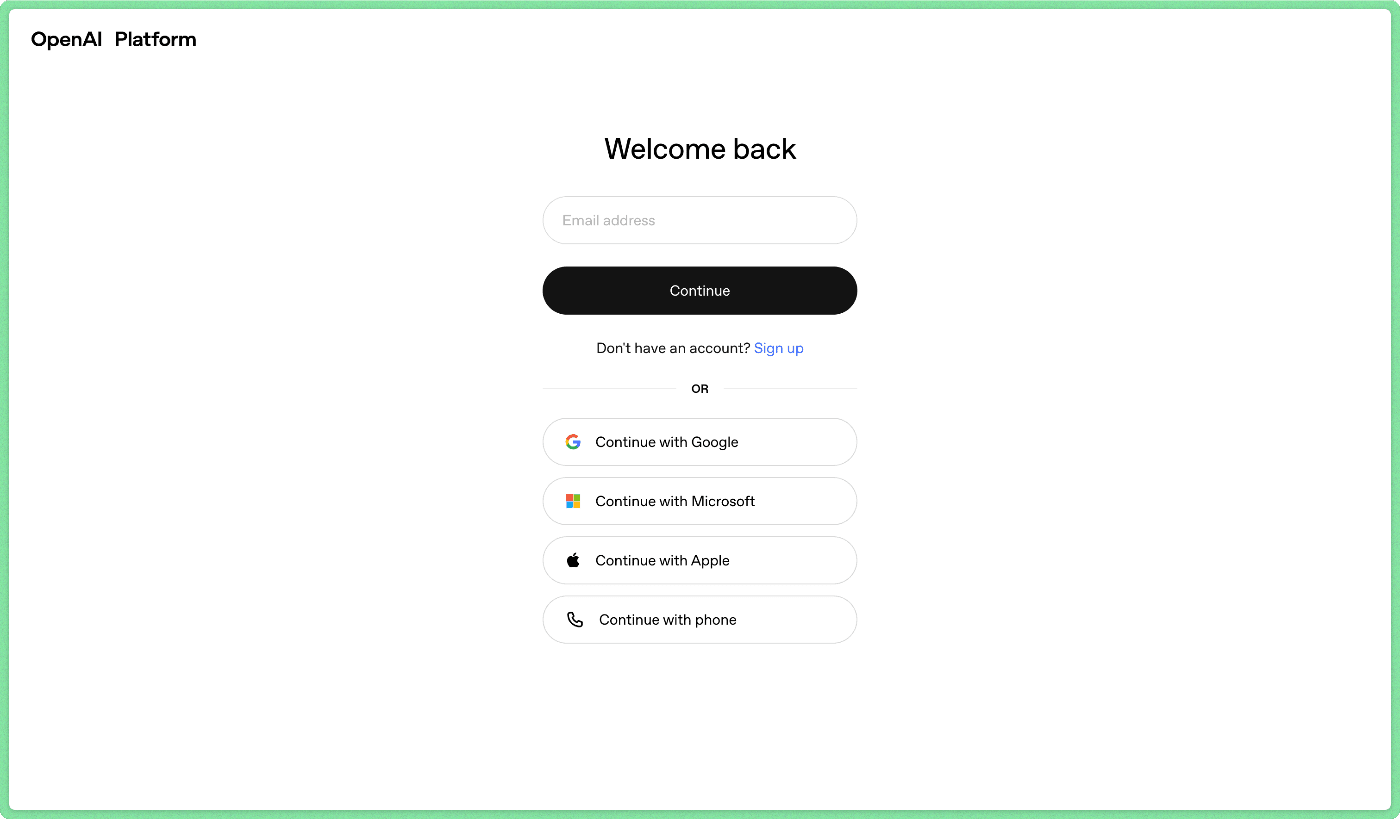
Step 2: Click on 'Dashboard' in the top right corner.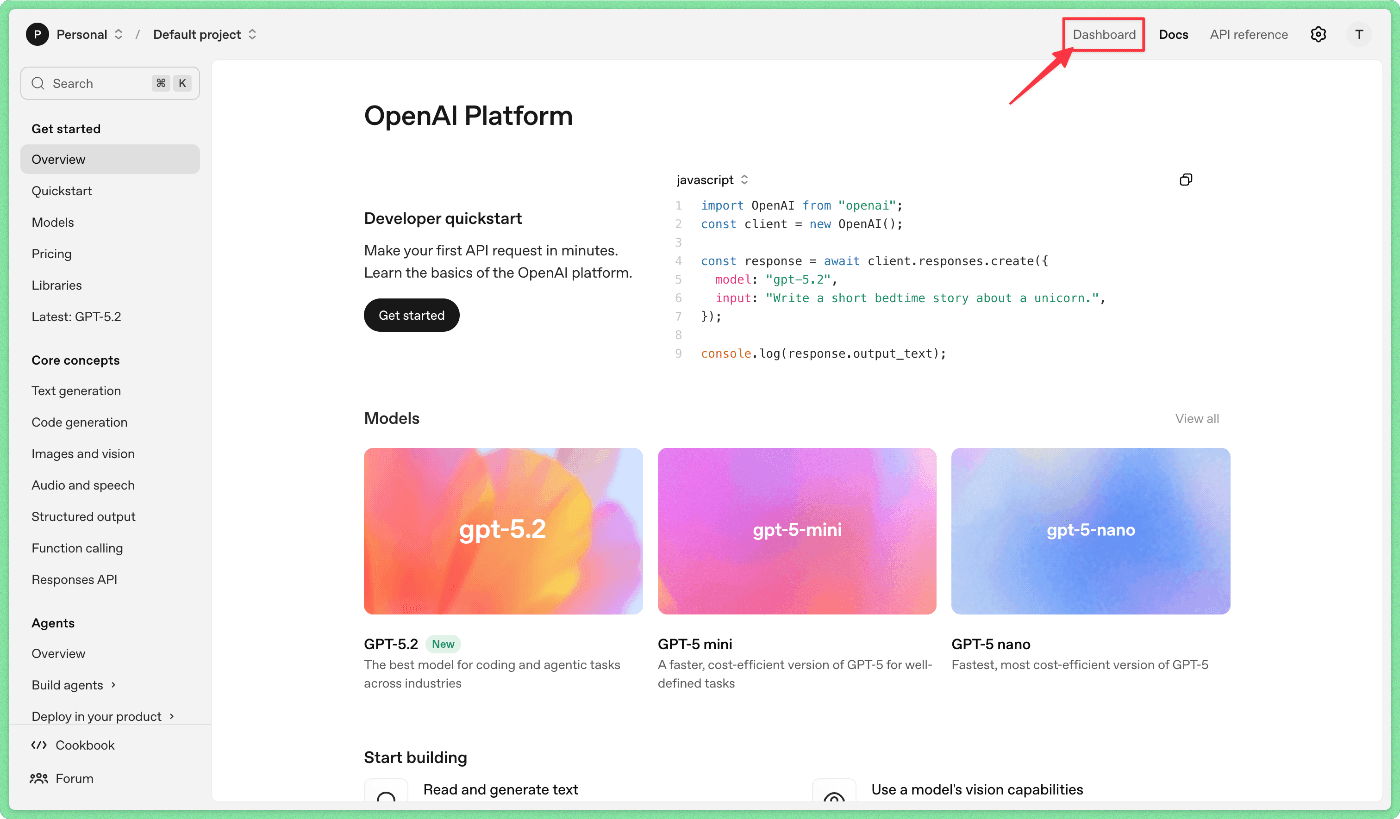
Step 3: Click on 'Api keys' in the left sidebar. Then click on 'Create new secret key' in the top right corner.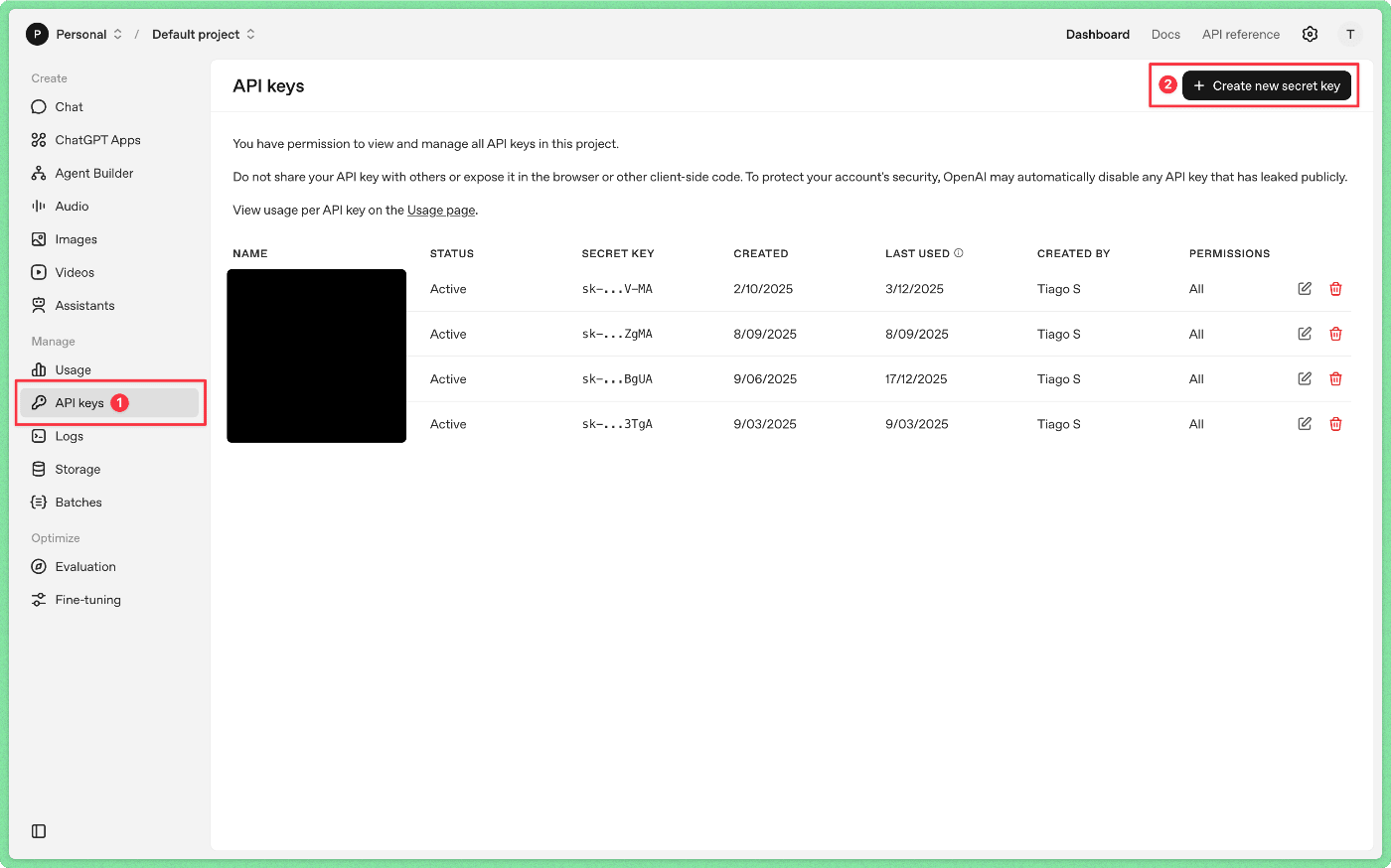
Step 4: Give a name to your key. This will make it easy for you to remember where you are using the key.
Using 'Video Asset Manager' is probably a good idea.
After you finish naming the key, click 'Create secret key'.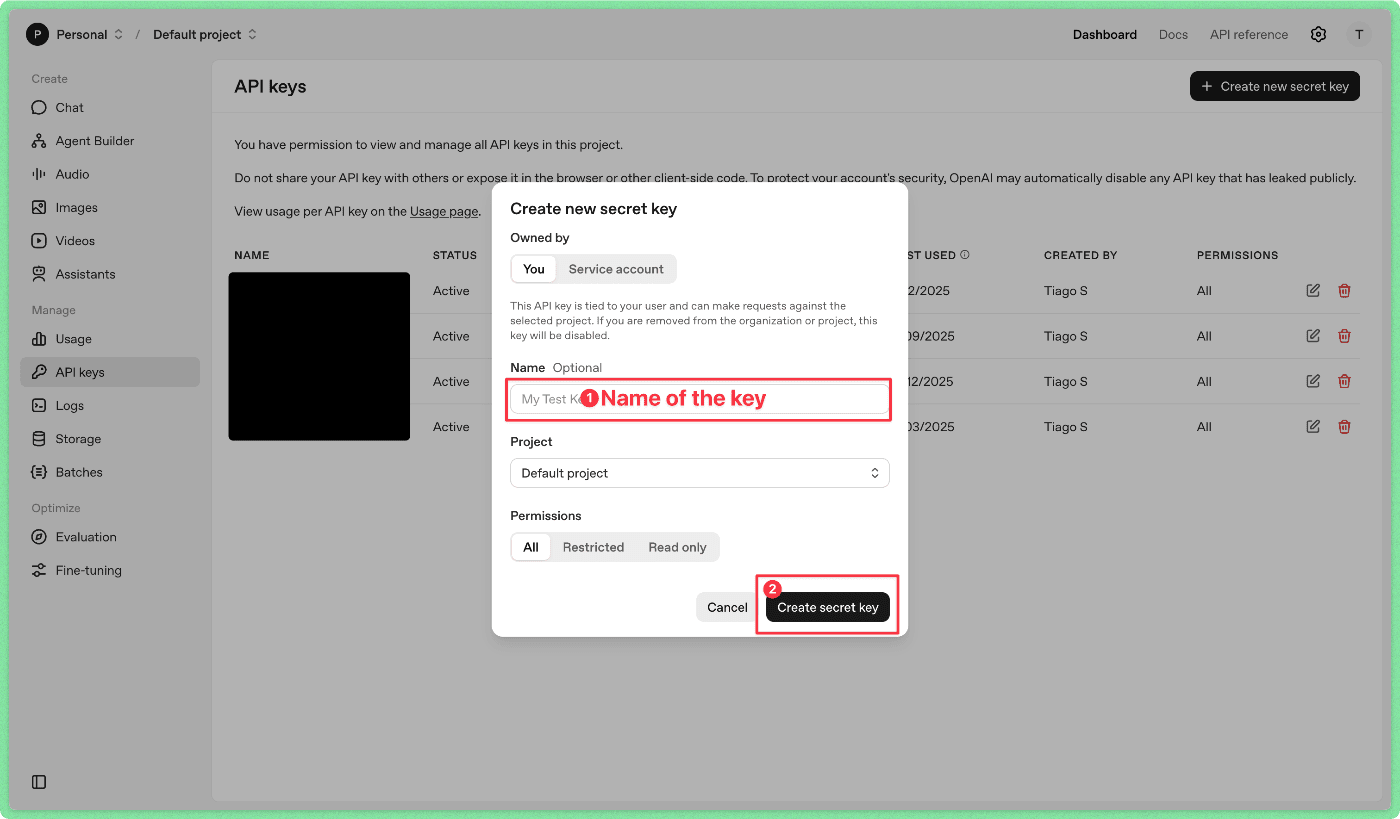
Step 5: Copy and save the key.
You won't be able to look at the key or save it later. So, I recommend you store it in a safe place, like a password manager, from where you can copy it later.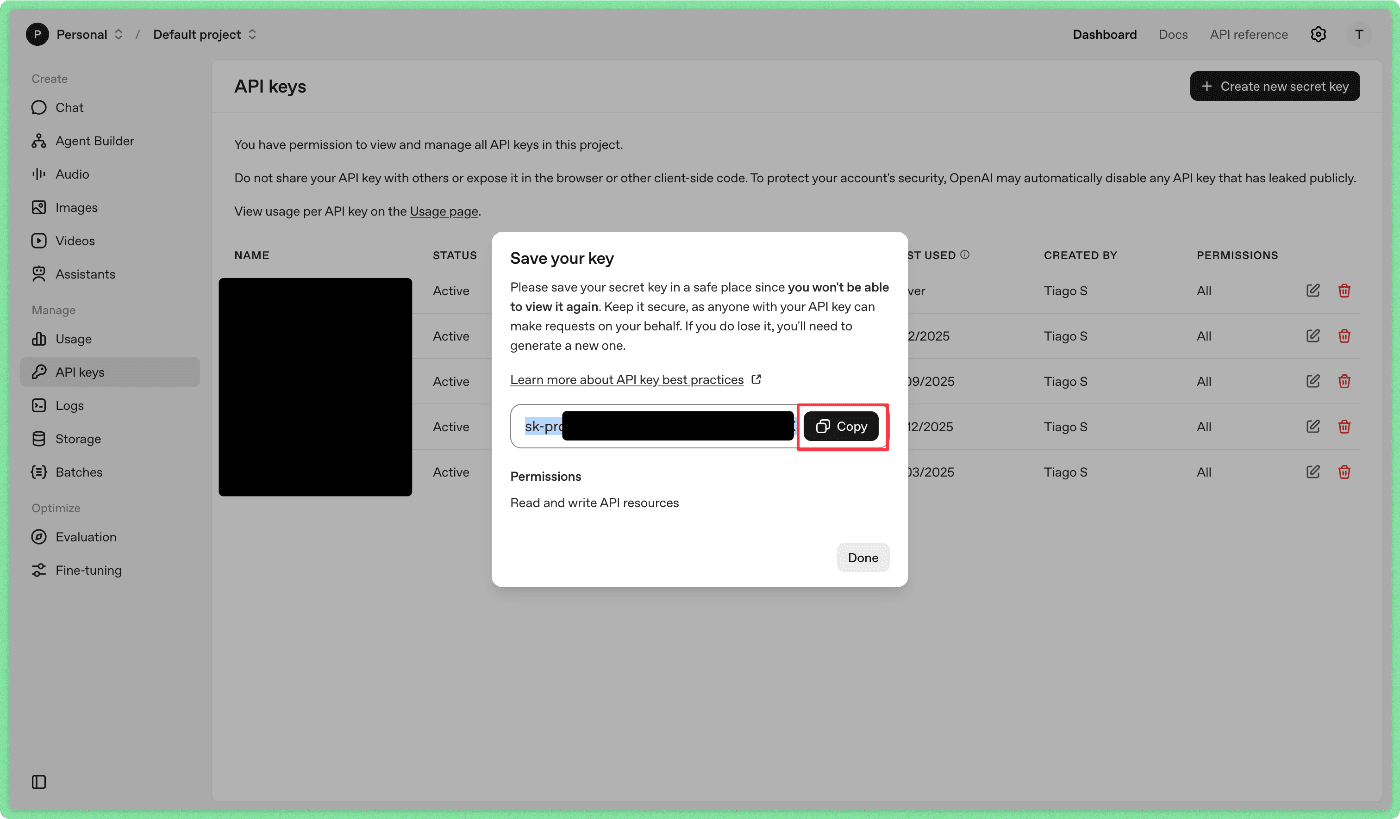
Now, you need to go to the Video Asset Manager app.
Step 6: On the app, go to Settings (gear icon).
Step 7: In the field 'OpenAI API Key', paste the key you got from Step 5.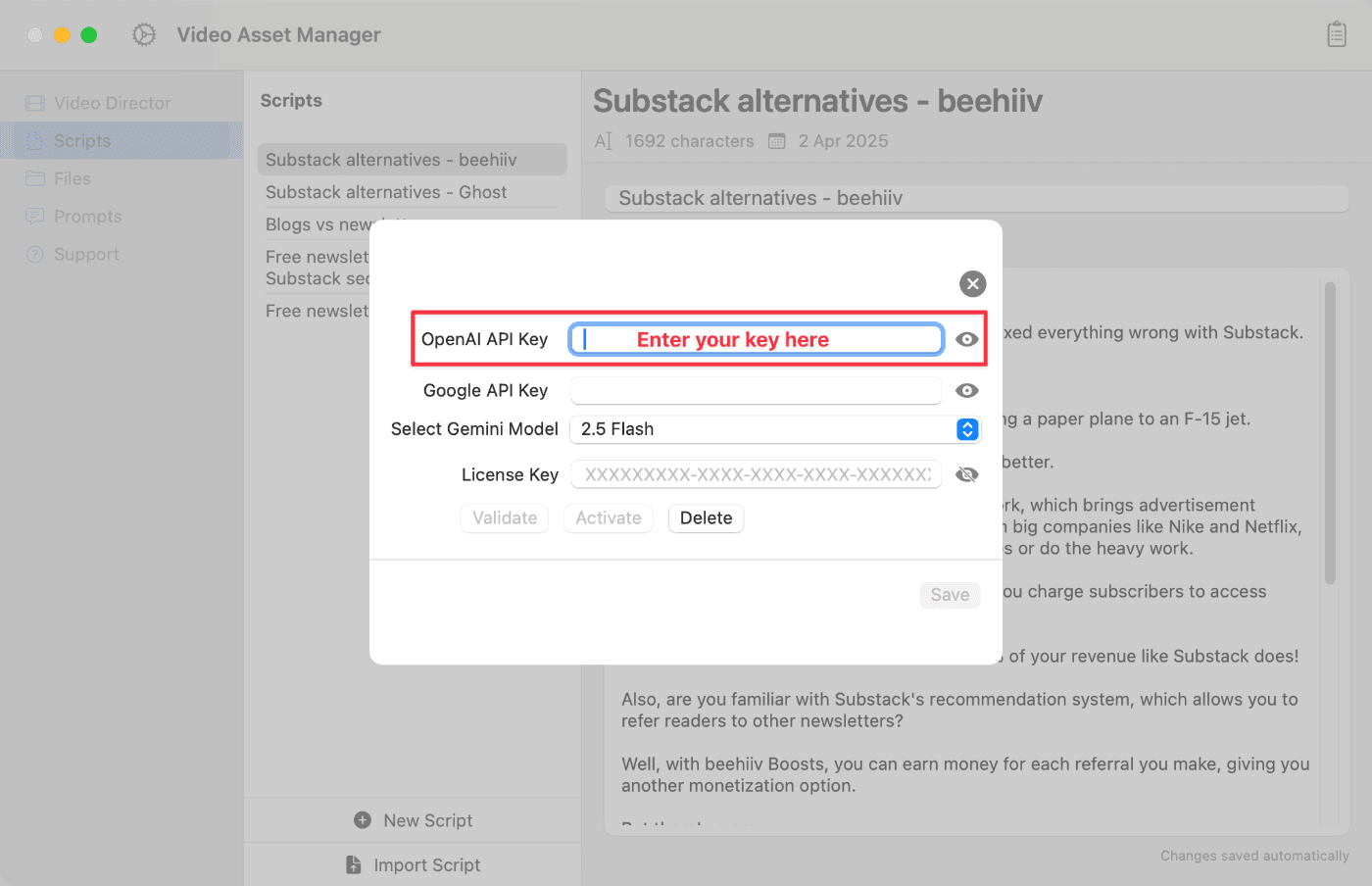
After you finish, click on 'Save' and the app will remember your API key for future usage.