The Video Asset Manager app requires a Google API key, an OpenAI API key, and a License key to function.
This document explains how to create and copy the Google API key so that you can start using the app.
Note: You may need to enable the Gemini API access from Google Cloud, or even enter a valid payment method. Please check Google's documentation and instructions if things changed from the time i wrote this article.
Step 1: Go to Google AI Studio and click on 'Dashboard' on the left sidebar. The URL is https://aistudio.google.com/.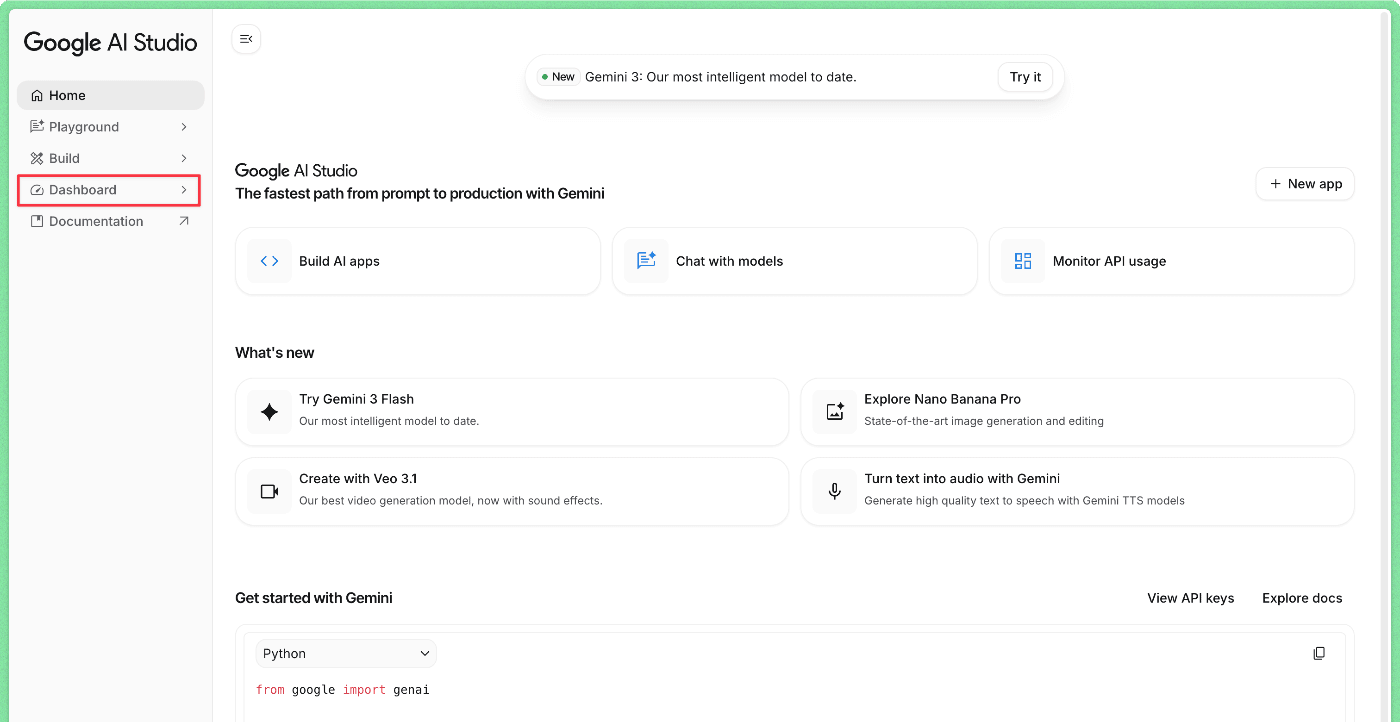
Step 2: Click on 'Create API key'.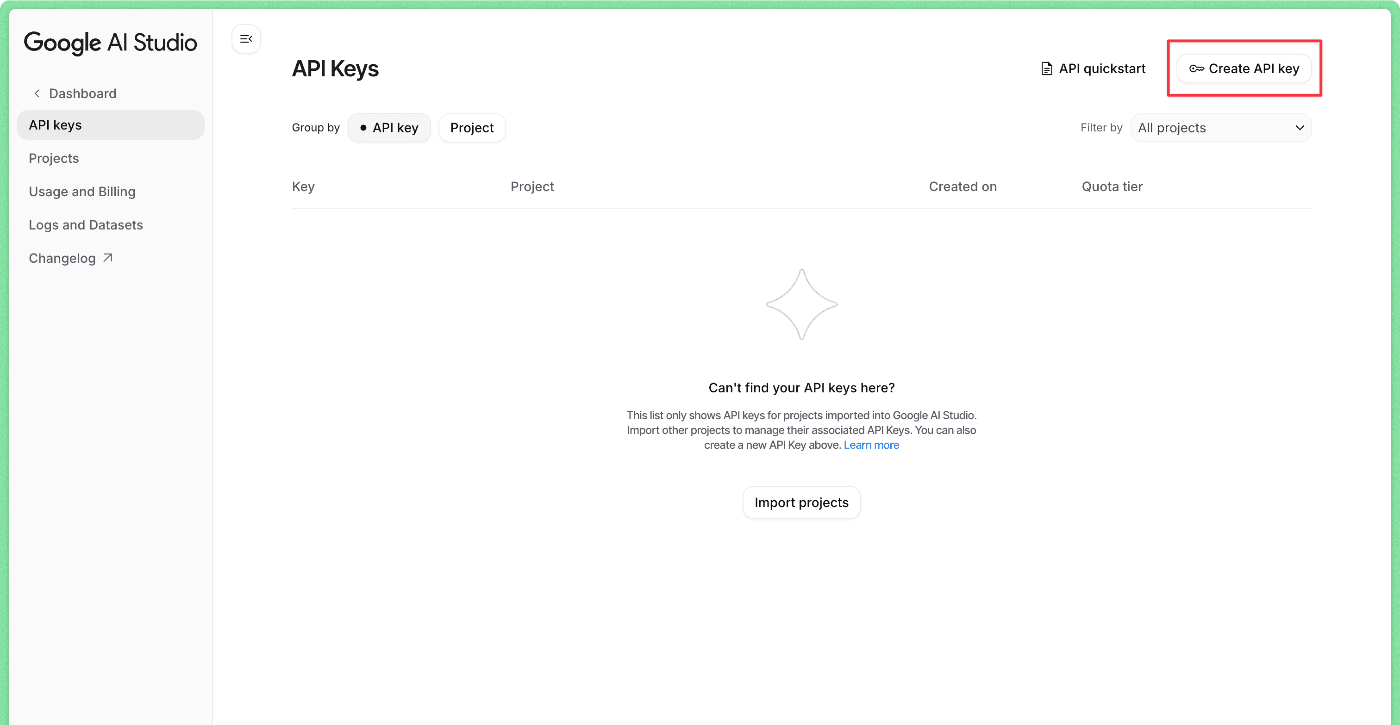
Step 2.1: If this is your first time doing this, you probably need to import a project from Google Cloud.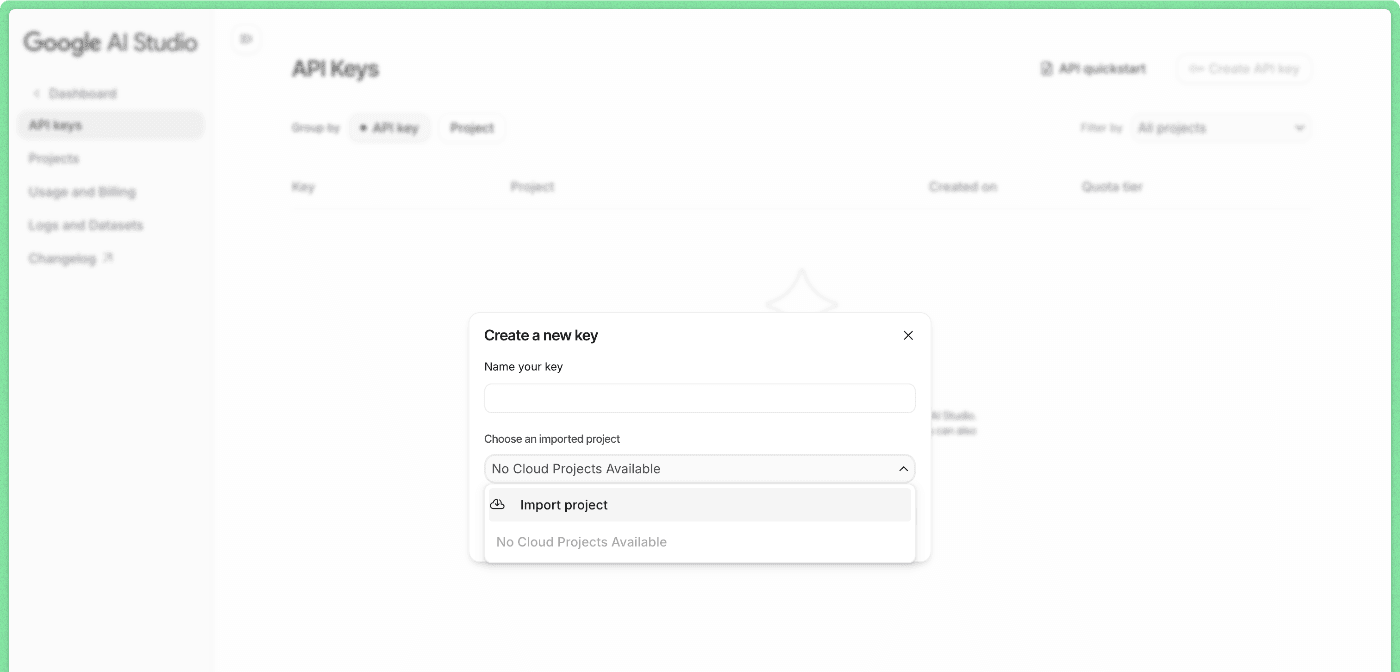
Step 2.2: Select the project with Gemini access from Google Cloud, and import it.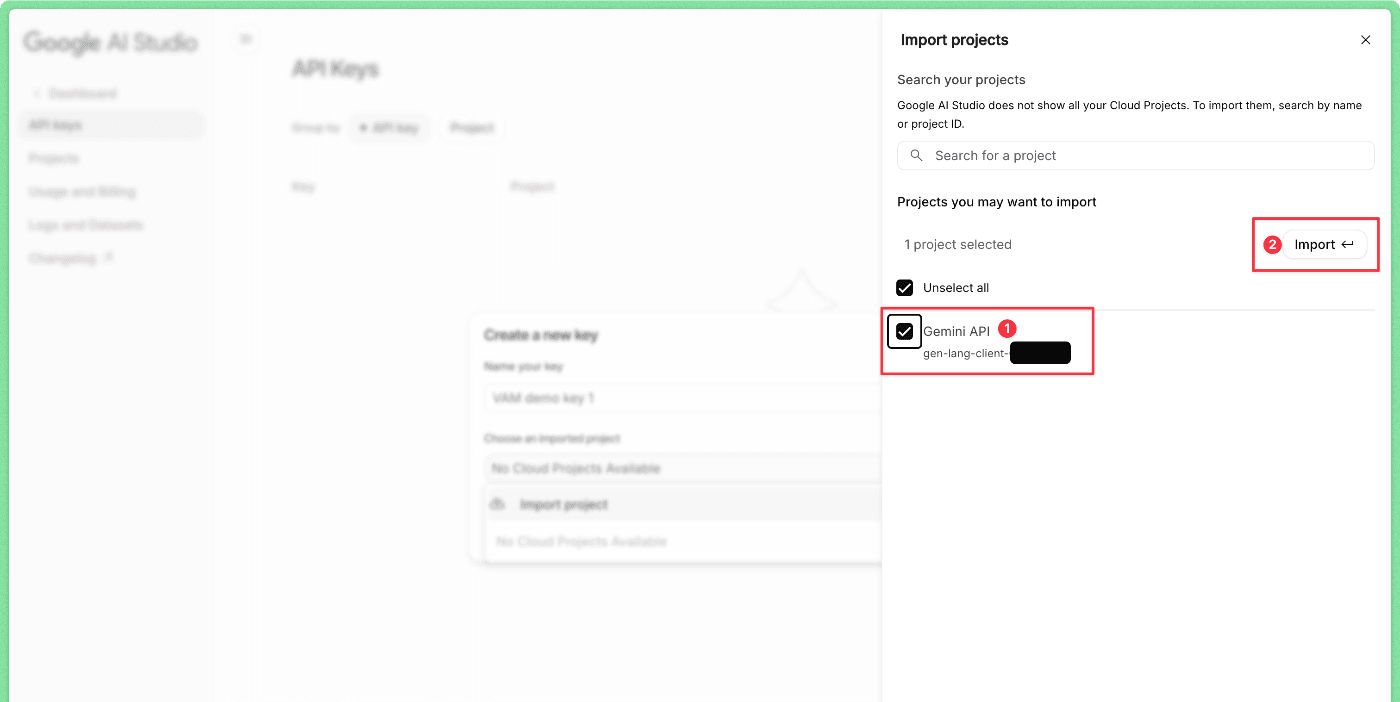
Step 3: Give a name to your key. This will make it easy for you to remember where you are using the key.
Using 'Video Asset Manager' is probably a good idea.
After you finish naming the key, click 'Create key'.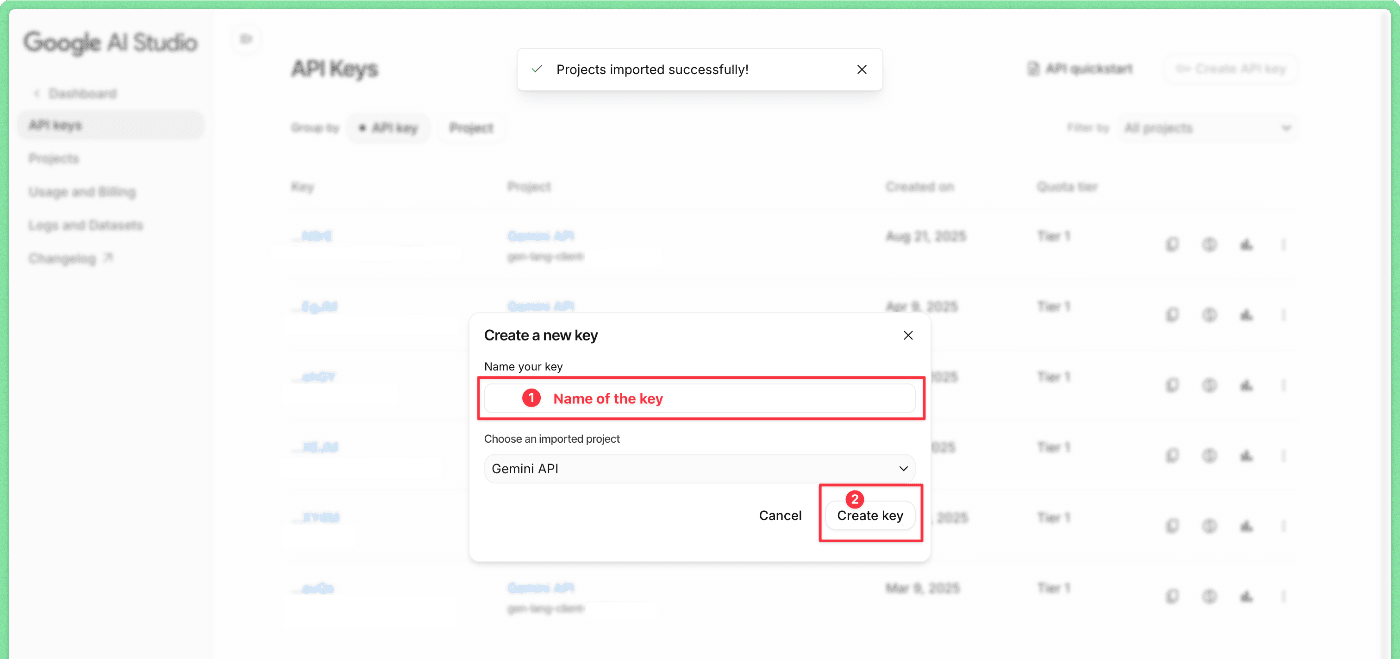
Step 4: Copy the API key from the dashboard using the copy button on the right side.
Google allows you to copy this API key at anytime, so you don't need to worry too much about saving it right now.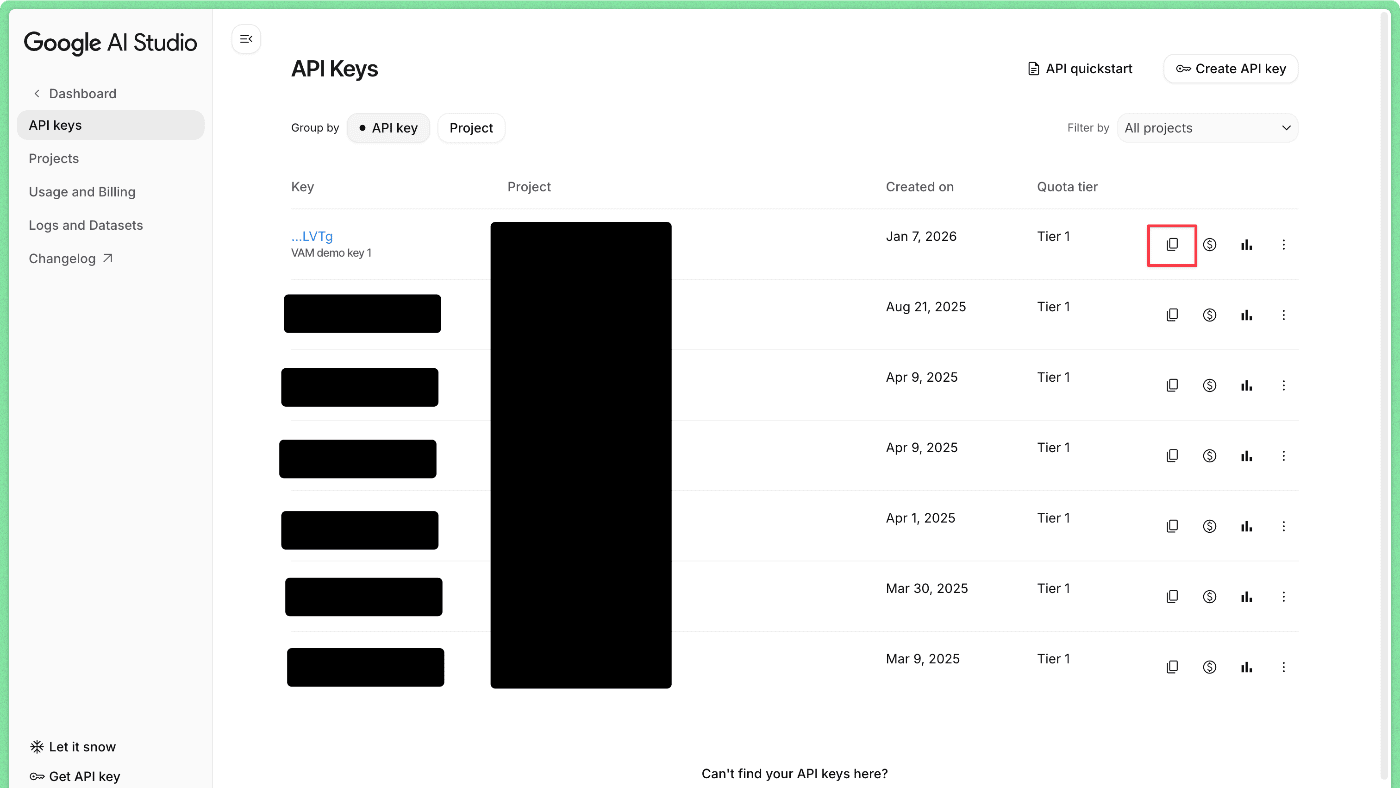
Now, you need to go to the Video Asset Manager app.
Step 5: On the app, go to Settings (gear icon).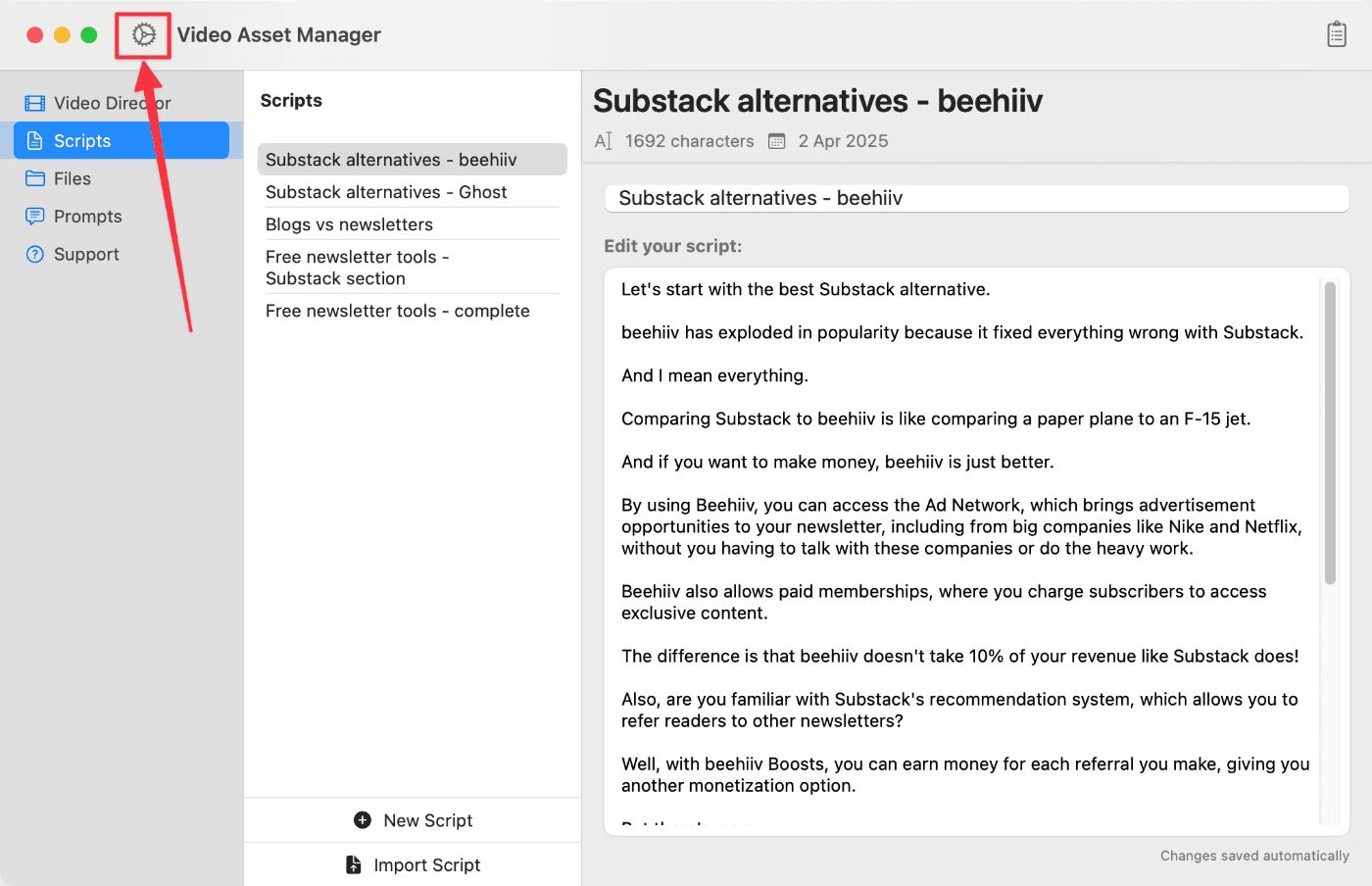
Step 6: In the field 'Google API Key', paste the key you got from Step 4.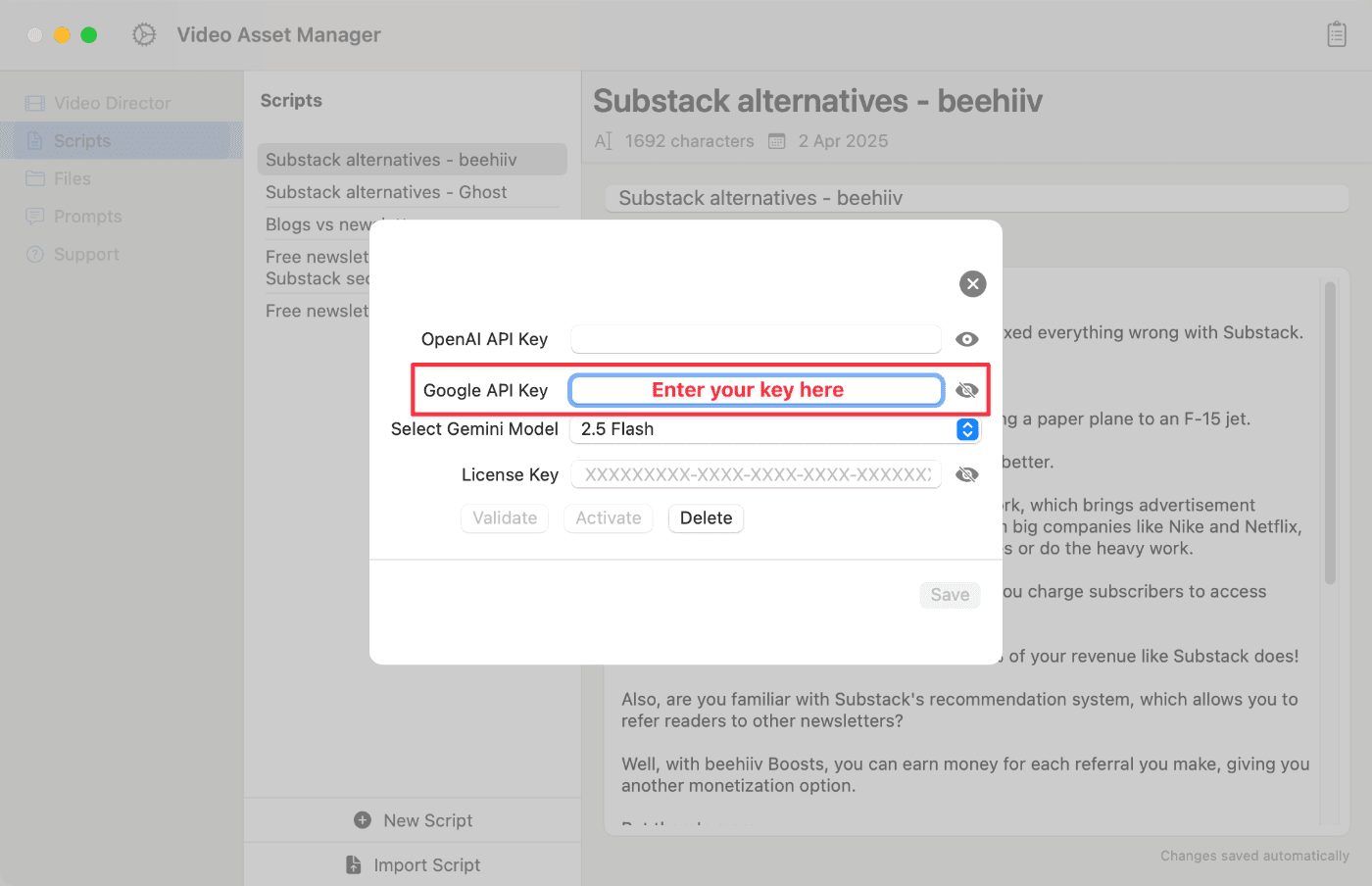
After you finish, click on 'Save' and the app will remember your API key for future usage.