B-roll logging is the process of reviewing raw video footage, selecting usable clips, or even adding metadata (such as tags, markers, and ratings) to make them searchable during video editing.
B-roll is the footage that supplements your main footage: the talking-head, the interview, the screen recording. And logging means you can actually find it when you need it.
For editors and creators, this is the difference between scrubbing through 3 hours of footage to find that one coffee shop shot or finding it in seconds. That's why b-roll logging is important.
In this article, you'll find the common workflows editors use, why they are a bottleneck, and automatic b-roll logging tools that can save several hours.
Most YouTube editors fall into 1 of these 3 workflows for logging b-roll footage. While they all work, they all have flaws.
The most common approach: import your footage into your video editing tool (Premiere Pro, DaVinci Resolve, or Final Cut Pro), scrub through the video, and cut the clips you want directly into the timeline.
This is fast to get started. Doesn't require extra tools or prep work. But you're not actually logging anything; you're just editing. The b-roll clips you don't use sit there untouched, with zero context, until you watch them to know their contents.
Next time you need a similar b-roll shot, you're back to scrubbing through the same raw footage. Or you just won't remember where that clip is at all.
Other editors may prefer to transcribe the video footage if it's in interview style and drop things into a Google Doc.
Transcription tools handle the heavy lifting, so getting the text is quick. The problem is what comes after. You still have to sift through the transcript, match sections to the right clips, tag what matters, and keep the whole doc tidy enough that you can actually find something now or in the future if you ever need to use that footage again.
Then there's the folder approach: nested directories, descriptive filenames, and maybe thumbnail previews so you can visually scan what's inside.
This holds up fine when your library is small (tens of hours of footage). But once you cross a threshold, you'll probably spend more time babysitting the folder structure than actually editing.
Here's where all 3 methods break down: they require a lot of time.
Manually logging 1 hour of raw footage takes multiple hours. That's valuable time you could've spent on the actual edit.
And most of that work doesn't carry over between videos, either. Everything you organized for the last video won't help you find clips if you work on a similar video in the future.
Also, markers and metadata are trapped inside the project files of your video editing software. What if you need a specific b-roll clip 6 months from now for a similar video? You can't search for it! You'd have to crack open old timelines and scrub through primary footage and b-roll all over again.
This wasted time managing and looking for b-roll compounds. While every new video adds footage to the pile, none of it gets easier to find.
Fortunately, there are AI tools to analyze and tag video footage. You feed them your b-roll videos, and get back the description of what's in each clip.
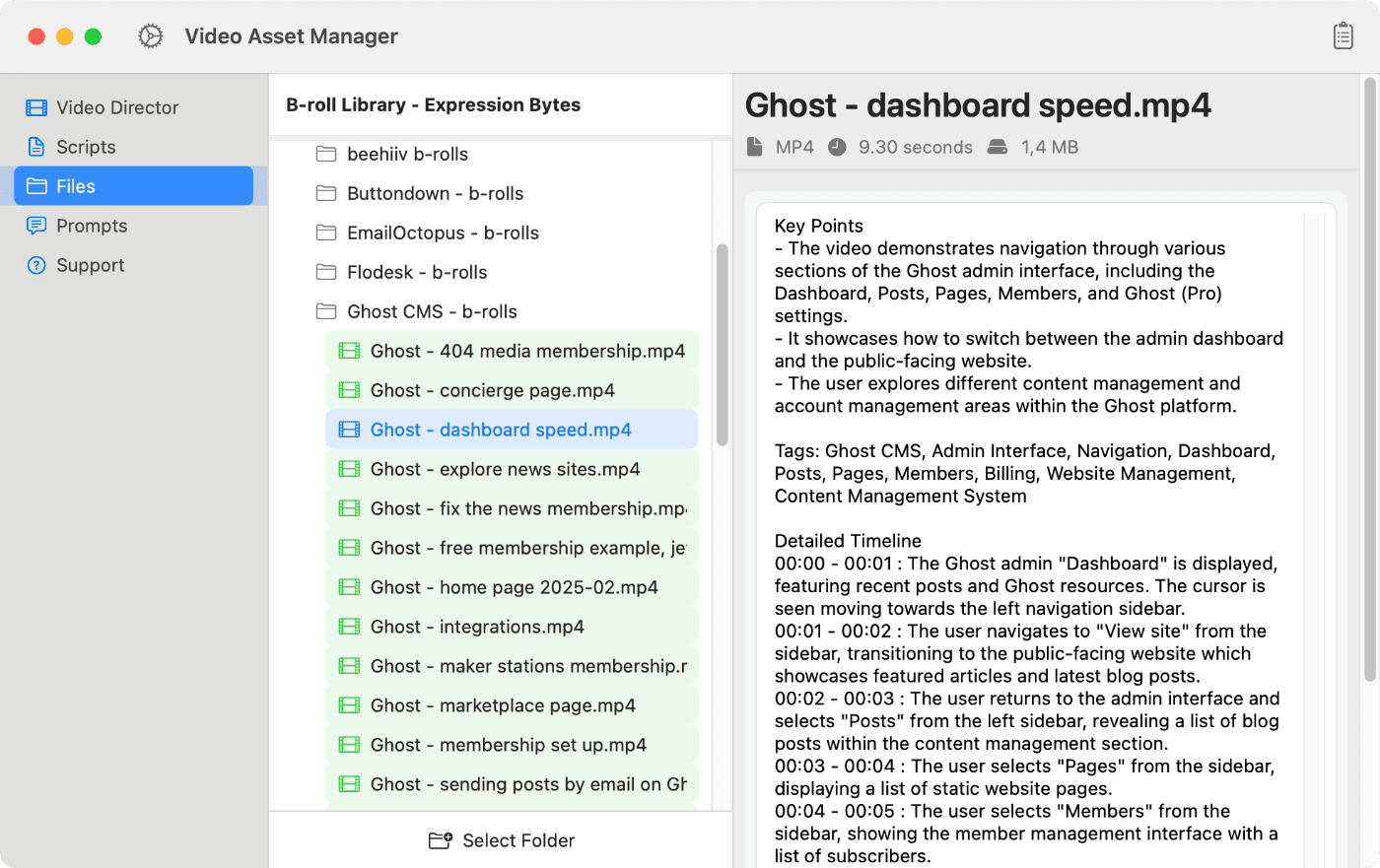
Video Asset Manager works by analyzing your b-roll videos and produces a timestamped description of everything in them. A 20-minute clip comes back with entries like "person walking through a crowded market" at 0:42, "wide aerial of city at sunset" at 3:15, "hands assembling a product on a desk" at 7:50.
This is a new level of detail that makes it easier to know what the whole video is about. Scene by scene, with timestamps, descriptions of actions, and objects available without you having to waste time watching the video.
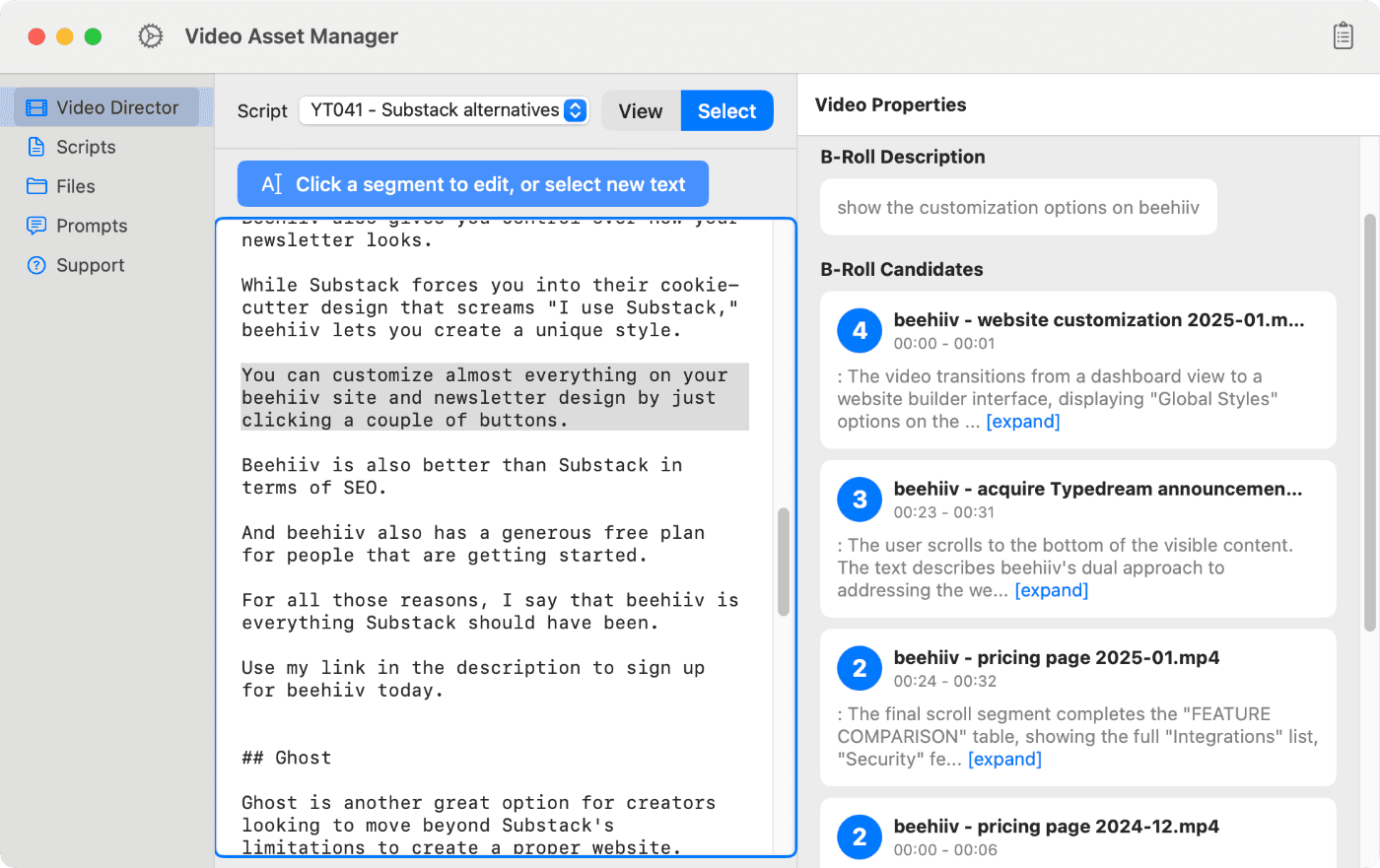
These analyses also ties b-rolls to the video script using the Video Director feature.
Paste your script into the app, select the section that needs b-roll, and tell it what you're looking for in plain language ("drone shot over mountains", "close-up of hands on keyboard", etc).
Then the AI suggests the most relevant clips from your analyzed videos, ranked by how well they fit the description, allowing you to search by what's actually in the video, not by whatever you named the file.
With this feature, you can go from a script to a shot list in minutes!
One of the best things about Video Asset Manager is that each video only needs to be analyzed once. Once analyzed, the text is stored in a database on your Mac and used in the future for when you are looking for b-rolls.
Footage you shot months ago can become useful if it matches what you need right now. Solving the problem of data being tied to project files inside your video editing software, and being hard to find.
Video Asset Manager works with whatever footage you have, your own shoots, or stock footage you've grabbed from places like Pexels.
There are other tools in this space too, like Eddie AI and Jumper. They each work differently, and the right pick depends on your NLE and how you want your data stored.
Expect to spend around 2 to 3 hours for every 1 hour of raw footage. This includes watching, taking notes, and organizing clips. Tools like Video Asset Manager that do automatic b-roll logging cut this to minutes with the help of AI.
Yes, tools like Video Asset Manager use visual recognition and language models to analyze what's in each shot and generate descriptive analysis. The quality depends on the AI model, but modern models do a surprisingly good job at describing footage in useful detail.
It saves time during video editing because you find the right clip in seconds instead of scrubbing through folders looking for b-roll. It makes your footage reusable across projects: those stock footage clips and personal b-roll shots you logged stay searchable.