Most lists about the best AI tools for video editing sound like a ranking. A captioning tool next to a color grading assistant next to a b-roll generator, as if they're all solving the same problem. Spoiler, they aren't.
That's why this article splits tools by job instead. Cutting silences, b-roll logging, audio cleanup, etc. The main goal is to show how AI can handle the mechanical work, while you focus on the creative decisions.
B-roll logging is the process of reviewing your footage and making it searchable. The goal: find the right shot later without scrubbing through hours of video.
But finding b-roll in long clips is one of the biggest time sinks in editing. Sometimes you have 4 hours of footage and only need 30 seconds. Without logging, you're watching and scrubbing until you stumble on it.
Video Asset Manager analyzes your b-roll library and makes it searchable. The app analyzes each video using AI, creating a scene-by-scene timeline with timestamps. Like "The user briefly examines the layout and configuration options for a digital product page within the site editor" happening between 04:34-05:08 of the video.
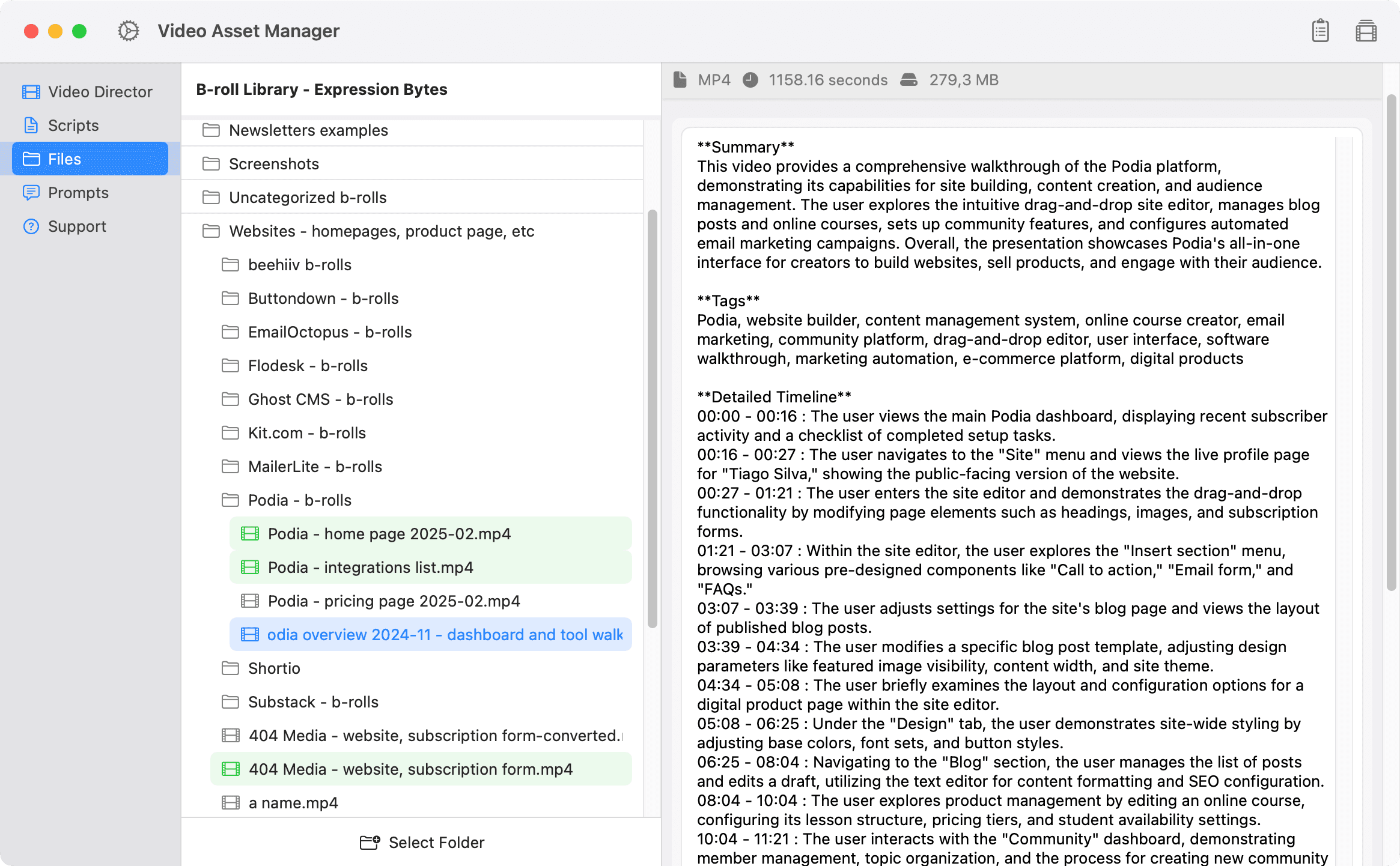
When you need b-roll, you just type what you're looking for. "Email automation examples," "coffee shop interior," "drone footage over the lake," etc. Video Asset Manager finds the matching clips in seconds, across every video you've analyzed.
Each video only needs to be analyzed once. The data stays on your Mac and carries over across projects. Footage you shot 6 months ago for a completely different video becomes useful again the moment it matches what you need now. Nothing locked inside old project files, nothing trapped in a timeline you'd have to crack open again.
VAM is built for creators and editors with large personal b-roll libraries, not for browsing stock catalogs.
As for pricing, the app is license-based via a one-time payment. Then you bring your own API keys and only pay for the AI usage you actually consume.
Jumper sits on your local machine with no cloud uploads and no internet connection needed. You search footage by describing scenes in text, dropping in a reference image, searching spoken dialogue (transcribed across 111 languages), or tracking specific people with face detection. Jumper plugs directly into Premiere, Final Cut, Resolve, and Avid. Pricing is per individual license.
Eddie works through a chat interface. You upload footage, type what you want (like "pull all mentions of product launch"), and Eddie assembles rough cuts and structured sequences. The tool is geared toward dialogue-heavy content like interviews and podcasts.
Eddie's logging mode tags b-roll clips with searchable metadata and descriptive titles, but that's one piece of a bigger tool that also handles multicam syncing and script-to-video assembly. As for pricing, Eddie has subscriptions starting at ~$199/month.
Every talking-head video or podcast has the same problem: pauses, filler words, breaths, and bad takes that need to go. But doing this by hand is awful!
Yet, this is also one of the easiest jobs to hand off to AI, and probably the fastest way to speed up your video editing workflow with AI.
Recut is amazing at detecting silences and cut it out of the footage. The app works by importing your video or audio and spitting out a rough cut in seconds.
This tool also lets you adjust the silence threshold (how much quiet time counts as silence) to make the cuts sound more natural. And Recut also handles multi-track.
A standout feature is how it exports things. Instead of rendering a new video, Recut creates a timeline file (XML, FCPXML, or EDL) that can be dropped into Premiere, Final Cut, Resolve, or Filmora to start the read editing process.
Recut has been one of my favorite tools for a few years and has both a one-time license or subscription.
Gling uses AI to detect bad takes, filler words ("um" and "ah"), and repetitions on top of dead air to produce a rough cut faster. This tool is made for YouTubers and editors to remove all the stuff that shouldn't be in the final version of the video.
It also has a text-based editor, caption generator, and punch-in zooms to give a multi-camera look. Gling can export the rough cut in video or timeline format for NLE video editing software.
In terms of prices, it has a free plan, and paid plans start at $20/month.
Descript can also remove filler words, shorten awkward pauses, and tighten gaps between sentences as part of its AI features, like Underlord AI. I will write more about Descript in another section below.
Camtasia is another option. It has AI-powered silence detection and text-based editing, so it's worth a mention, although it's mostly known as a screen recording tool.
AI b-roll generation fills a specific gap for when you need a shot you don't have, you can't reshoot things, and stock footage doesn't fit. These tools create new footage from text prompts or reference images.
One caveat worth being upfront about. AI-generated b-roll works best for abstract, atmospheric, or illustrative shots right now. For the right kind of shot, these tools can save a reshoot or the suboptimal stock footage compromise.
Runway is the most established platform for AI video generation right now. The Gen-4.5 model handles text-to-video, image-to-video, and video-to-video, with noticeably better temporal consistency than earlier versions (faces that don't melt, clothing that stays put across frames).
Director Mode gives you control over camera movements like pans, tilts, and zooms throughout the clip. Runway's in-video editor, Aleph, lets you tweak specific parts of a generated clip without regenerating the whole thing. The platform runs entirely in the browser, has a free tier (with watermarks), and paid plans start 15/month.
Sora is OpenAI's video generation tool, now on its second iteration. Sora works as a physics simulator, so objects behave like they have actual weight and momentum instead of floating around randomly.
Sora generates clips up to 20-25 seconds at 1080p with synchronized audio (dialogue, sound effects, ambient music) baked in. The tool also plugs directly into Premiere Pro, so editors can generate or extend b-roll right on the timeline. As for pricing, Sora is part of ChatGPT plans.
Pika leans into the more stylized and creative end of AI video generation. The Pika 2.5 engine is physics-aware, but the platform's real personality shows in features like Pikaffects (crush, melt, inflate, levitate objects in your scene) and Pikascenes (combine separate visual elements into one animated shot).
For abstract or conceptual b-roll, Pika is a strong pick. The platform generates matching sound effects automatically, and Pikaswaps lets you swap elements in and out of existing footage. Pika has a free plan, and paid plans start at ~$10/month.
Kling is another option worth knowing, especially for longer clips (Kling chains sequences up to 3 minutes) and generates synchronized audio natively. Kling has a free plan too, with paid starting at ~$10/month.
Stable Video Diffusion is open-source and runs on your own hardware, but the model is more of a research project right now, with clips capped at a few seconds and limited resolution.
Note: generating b-roll and finding b-roll in your existing library are two completely different jobs. If your problem is "I have the footage somewhere but can't find it" that's what b-roll finder tools handle, like the ones covered in the section above.
Transcription-based editing lets you edit video by editing text. Your footage gets transcribed, and the transcript becomes your timeline. If you delete a sentence, the video is cut. Move a paragraph, and the footage rearranges. It's that simple.
For dialogue-heavy content like interviews, podcasts, and tutorials, text-based video editing can shave hours off a rough cut. If you're looking for video editing assistant tools that actually save time, this category is probably where you'll feel the biggest difference.
Descript turns your footage into an editable transcript instead of traditional timelines. Delete a sentence, the video gets shorter. Move a paragraph, the footage rearranges. That's how simply things work on Descript.
Descript's Underlord AI also strips filler words, tightens gaps, and centers speakers in the frame automatically. Studio Sound cleans up audio to sound like it was recorded in a proper studio (surprisingly effective on laptop mics). And Overdub clones your voice so you can type a correction into the transcript instead of re-recording it.
Descript can exports to Premiere, Final Cut, and Resolve if you want to finish in a traditional NLE or export the final version ready to publish on the internet. In terms of pricing, Descript has a free plan and paid plans start at ~$15/month.
Otter.ai turns long recordings into searchable, structured transcripts with speaker labels, timestamps, and keyword detection. The tool comes from the meetings world, but editors have adopted Otter for logging interviews, pulling quotes, and building paper edits before opening the NLE.
Otter won't cut your video. But as a prep step, it's hard to beat. Otter's AI generates summaries and flags action items automatically, useful when you're digging through hours of client footage for the key moments.
Otter has a free plan, and paid starts at ~$17/month.
Riverside is worth a mention here too. Riverside is a recording platform with transcription-based editing baked in, popular with podcasters doing remote interviews (Riverside records locally on each participant's device, so quality is preserved if someone's internet drops). Pricing starts at ~$15/month.
And Adobe Premiere's built-in Speech to Text does the same basic job inside the NLE you're probably already using, no extra tool needed.
Auto-captioning used to be a nice-to-have. Now every social platform rewards it, and most viewers scroll past anything without subtitles. These tools generate captions from your dialogue automatically, sometimes with styling that goes well beyond a plain SRT file.
CapCut handles auto-captioning as part of a full video editor built by ByteDance (the TikTok parent company). You drop your footage in, the app transcribes dialogue in over 20 languages, and you pick from 100+ animated caption templates to style the result.
But captions are just one piece as filler word removal can strip "ums" and "uhs" during transcription. Auto Reframe resizes your video for different platform aspect ratios. And the newer "Idea-to-Video" mode can generate a complete video from a topic or talking points (script, stock media, voiceover, all in one automated pass).
Although the Capcupt free plan was more generous in the past most core features are still there, and
paid plans start at ~$20/month.
Captions (formerly Captions.ai) takes a mobile-first approach to AI-powered captioning. You upload footage, pick a visual style, and the app generates styled subtitles in over 100 languages while also cutting, adding transitions, and finishing the video around them.
The caption styling is solid on its own, but Captions also packs in eye contact correction, voice cloning for AI voiceovers, and background noise removal.
It's one of the more aggressive "do everything" apps in this space (there's even a chat-based editor where you type prompts to direct changes). The app is free to download, and paid plans start at ~$10/month.
Submagic is built for short-form caption styling specifically. The platform transcribes your video and generates animated captions with emoji highlights, color effects, and word-by-word animations designed for TikTok and Reels.
There's also silence removal, AI b-roll insertion, and auto zoom baked in. But the captions are the main draw. Submagic is browser-based and focused entirely on making short videos look polished fast. No free plan, and pricing starts at ~€19/month.
Zubtitle burns styled subtitles directly into your video with support for 60+ languages and basic trimming tools built in (free plan available, paid from ~$19/month).
Subly handles auto-subtitling and translation through a simple browser interface.
And AutoPod is worth knowing for podcast editors: it's a Premiere Pro plugin that automates multi-camera editing with speaker detection and jump cuts, plus generates social-ready clips in multiple aspect ratios. AutoPod runs $29/month with no free tier.
AI audio cleanup fixes the stuff you can't reshoot (background noise, room echo, wind, HVAC hum). Bad audio ruins video, and these tools can be a life-saver.
Adobe Enhance Speech cleans up dialogue through a browser. You upload your audio, the AI strips out background noise and reverb, and you download a file that sounds like it was recorded in a proper studio. That's it. No sliders to learn, no plugin to install.
The v2 model (released early 2026) also handles source separation, letting you pull out isolated stems for speech, music, and background noise separately. Adobe Enhance Speech has a free tier, and paid plans start at ~$10/month.
Auphonic runs your audio through an automated post-production pipeline: leveling, noise reduction, loudness normalization, and filler word removal, all in one pass. You upload a file (audio or video), pick your target loudness standard, and Auphonic delivers broadcast-ready output.
The multitrack processing is where Auphonic really shines for editors. It handles automatic ducking between tracks and strips microphone bleed without manual mixing. Particularly useful for multi-mic podcast and interview recordings. Auphonic has a free tier, and paid plans start at ~€9/month.
Cleanvoice focuses specifically on podcast audio cleanup: filler words, mouth sounds, breath noises, and long silences, across 20+ languages. When Cleanvoice strips a filler word, it patches the gap with natural room tone instead of digital silence (a small detail that makes a real difference). Pricing starts at ~€10 for a credit pack.
iZotope RX is the industry standard for professional audio repair, a full workstation with surgical tools for everything from de-clicking to spectral editing. RX plugs into Premiere, Resolve, Pro Tools, and Logic as a plugin suite. It's overkill for a quick cleanup, but nothing else touches it for serious restoration work. RX starts at ~$99 for a perpetual license.
Repurposing long-form video into shorts is one of the most popular AI editing jobs right now. You feed in a podcast, webinar, or YouTube video, and the tool spits out vertical clips ready for TikTok, Reels, and Shorts.
If you publish on those platforms regularly, AI tools for short-form video can turn one long recording into a week's worth of posts.
Opus Clip takes a YouTube link (or uploaded file) and pulls out the most engaging moments as standalone vertical clips with animated captions and smart reframing. It's probably the most widely used AI video repurposing tool in this category right now.
Each clip gets a Virality Score, an AI prediction of how likely it is to perform well. It's a rough signal, not gospel, but useful for deciding which clips to publish first (and which to skip). Opus Clip also handles auto-posting to multiple platforms in one go. A free plan is available, and paid plans start at ~$15/month.
Quso.ai (Formerly Vidyo.ai) wraps video repurposing inside a broader social media management suite. The clipping engine identifies high-engagement segments and formats them for each platform automatically, with AI captions, filler word removal, and smart reframing baked in.
But what sets Vidyo apart is everything around the clips: content scheduling, analytics, direct publishing to 7+ platforms, and an AI content planner for organizing your posting calendar. It's more of a full pipeline than a one-job tool. Free plan available, and paid plans start at ~$15/month.
Munch Studio takes the same core job, clipping long videos into shorts, and layers trend analysis and content strategy on top. The extraction engine uses NLP and sentiment analysis to find segments with the most impact, then formats them with auto-captions and platform-specific cropping.
The strategy angle is Munch's differentiator: it writes post captions, suggests hashtags, and recommends publishing times based on trending data. If you want a tool that thinks about distribution alongside clipping, Munch goes deeper there. It doesn't have a free plan, and pricing starts at ~$38/month.
Klap does the same core job: paste a link, get vertical clips with animated captions and a virality score. Klap also supports AI dubbing for localizing clips into different languages, which is a nice touch for international audiences. Pricing starts at ~$23/month.
AI color grading works differently from the other categories here. The best features are already baked into the NLEs you probably use every day. Most of the time, you're just turning on what's already there.
DaVinci Resolve already owns color grading in professional post-production, and the Studio edition adds AI onto that foundation through the DaVinci Neural Engine. The standout is Magic Mask as you click on a person/object, then Resolve isolates and tracks them across the entire shot. This lets you color grade a subject separately from the background without drawing a single rotoscope mask by hand.
The AI cleanup tools are solid too. UltraNR pulls noise out of low-light footage without turning everything to mush, Face Refinement handles beauty corrections with automatic face detection, and SuperScale upscales footage 3-4x using AI rather than basic interpolation (genuinely useful when you need to punch in on a wide shot).
The free version of Resolve covers a lot, but the Neural Engine features live behind Resolve Studio at $295 for a one-time perpetual license.
Premiere Pro takes a leaner approach to AI color tools. Auto Color Match in the Lumetri panel grabs the look from one clip and applies it to another, with face detection that keeps skin tones accurate during the match. Every adjustment stays editable, so you're not locked into whatever the AI decides.
Object Mask (added in 2026) tracks subjects for targeted corrections without manual masking. And Generative Extend uses Firefly to add AI-generated frames when a clip runs a few frames short (not color grading per se, but but still useful). Premiere Pro is subscription-based, starting at ~$23/month.
Topaz Video AI sits next to color grading in many editors' workflows. Topaz handles AI upscaling (up to 16K), denoising, stabilization, and deinterlacing, all running locally on your GPU. Particularly useful when archival or low-res footage needs to match the quality of everything else in your timeline. One-time license at ~$299.
AI voiceover solves a specific frustration: the script changes after you've already recorded. Or you need narration in 5 languages. Or you just need a placeholder voice for a rough cut that doesn't sound like a robot from 2015.
ElevenLabs produces the most natural-sounding AI voices available right now, and it's where most editors start when they need generated narration. You enter your script, pick a voice (or clone your own), and the output sounds close enough to a real recording that viewers won't flinch.
The voice cloning is the real draw. A short audio sample gives you an instant clone; longer training data produces something eerily close to the original. ElevenLabs also handles AI dubbing, translating your video's audio into other languages while keeping the speaker's emotion and timing intact. The platform supports 70+ languages and runs entirely in the browser. ElevenLabs has a free plan, and paid starts at ~$5/month.
Speechify Studio takes a more hands-on approach to AI voiceover. You get 1,000+ voices across 60+ languages, but the real strength is the editing controls: you can adjust speed, pitch, pauses, and emotional tone at the word level. That kind of granularity matters when you're trying to match narration to a specific cut.
Voice cloning works from just a 20-second recording, and AI dubbing handles multi-language localization with automatic sync. Speechify also pairs voiceover with AI avatars if you need a talking head without an actual talking head (useful for training videos and explainers). Free plan available, and paid starts at ~$19/month.
Murf focuses on the professional and corporate end of AI narration: e-learning, training content, and polished marketing voiceovers. Murf offers 200+ voices across 35+ languages with word-level emphasis controls and a pronunciation editor for specialized terminology. Free plan available, paid starts at ~$29/month.
No single tool covers every job on this list. And the right setup depends on which parts of your workflow take the most time, whether that's scrubbing for footage, cutting dead air, generating missing shots, or captioning everything for social.
The goal is to use AI in your favor and let it handle the mechanical work, so you can keep the focus on the creative process.
At the end of the day, it's all about picking the tools that solve your bottlenecks by combining some of these tools.